
Table of contents
Understanding the well-being drivers.
Learn everything you need to know about the different well-being drivers and how to improve them.
How to succeed with the 8 drivers of well-being.
How to succeed with the 8 drivers of well-being.
Using your analytics.
Learn how to read, understand and analyze your data across your People Analytics suite.
Well-being Report.
Understanding the well-being score.
Get to know the well-being score.
Quick overview of the development of your organization's average well-being.
How to interpret the well-being score.
The Well-being score is a high-level metric. In short terms, it tells you how well your employees thrive. The score ranks from 1-100, where 100 is the best.
The Well-Being score is made up of an average score of the 8 Well-being drivers that we measure in the survey. Note that the 8 drivers also rank from 1-100, you can read much more about the 8 Well-being drivers here.
This allows you to understand the current Well-being of your organization and in which direction this is trending.
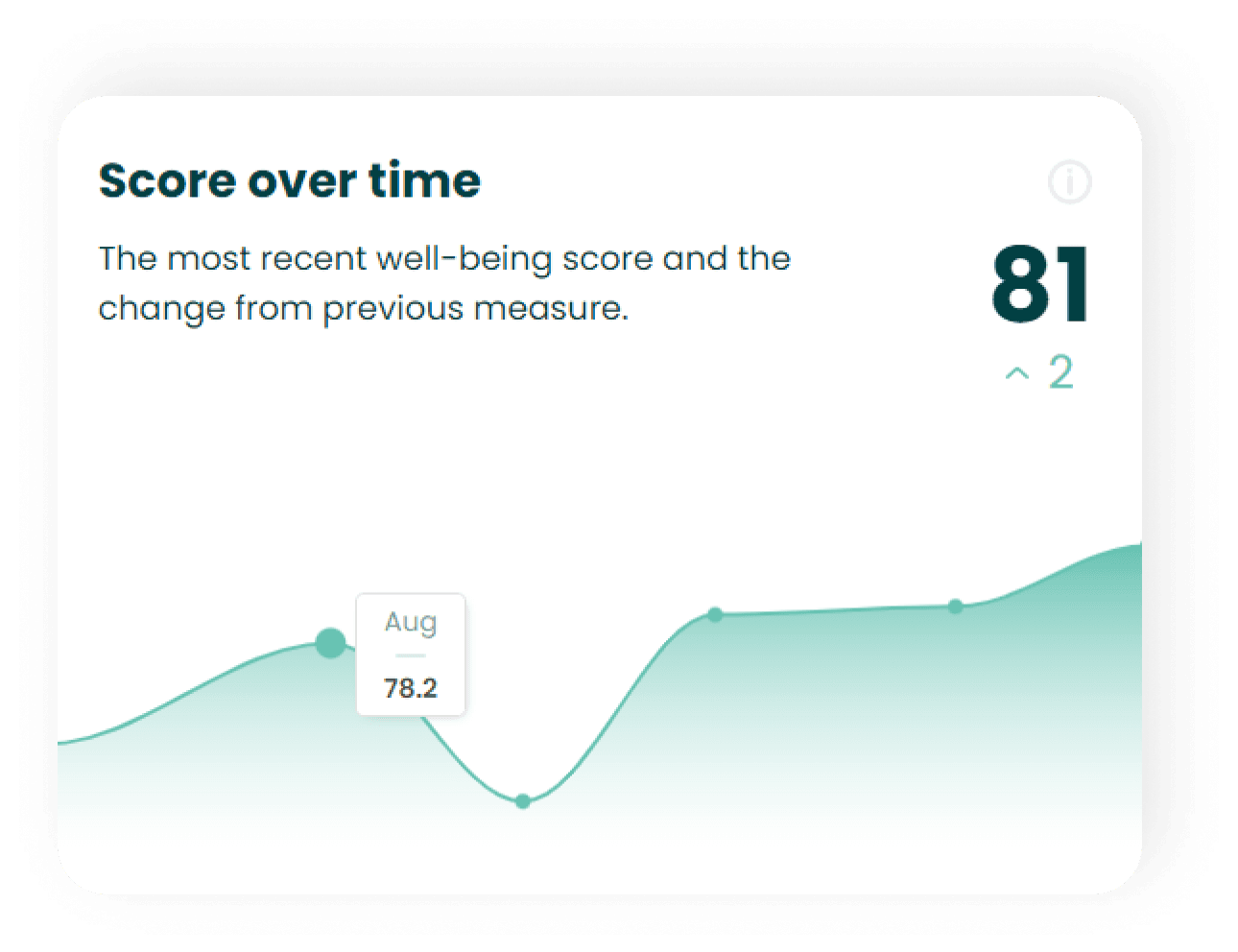
Here is a tip. 💡 Even though the well-being score is an average of the scores of the eight well-being drivers some drivers will be more important for your employees. Learn more about drivers here.
What are the dots on the graph?
The dots on the graph each represent a measure and enable you to track the development in the well-being score month over month. 📈
You might also find this interesting. 👀
Well-being driver chart.
Learn how to read the well-being driver chart and understand how the drivers affect the overall well-being score.
Know which drivers your company scores low and high on.
The scores.
The scores in the Drivers graph rank from 0-100 where 100 is the best. The well-being drivers contribute equally to the overall well-being score which is the average of all the well-being drivers.
Learn more about the different drivers here.
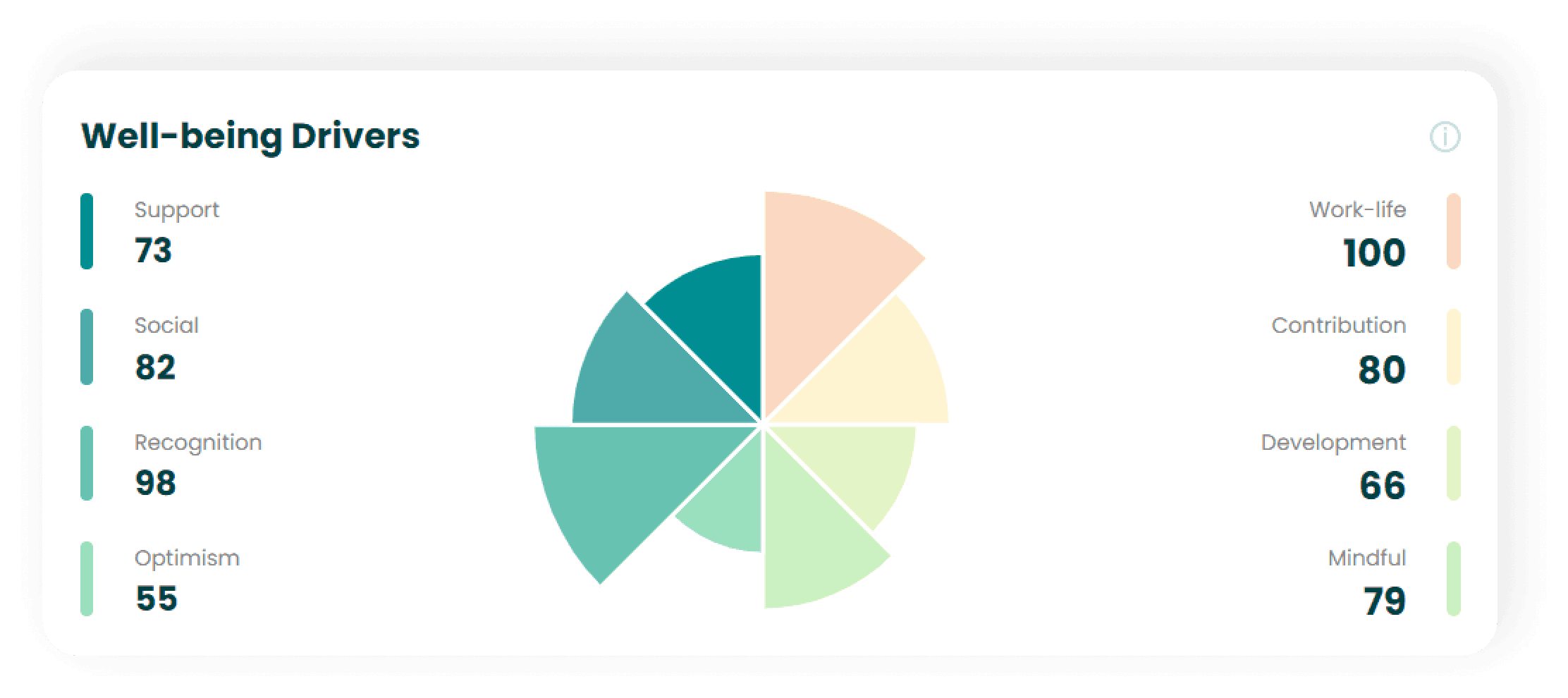
The well-being driver chart.
The polar chart shown in the middle is a visual representation of the drivers. It provides a quick overview by showing the actual scores of the drivers represented as the areas of the triangles. The bigger the area the higher the score.
Here is a tip. 💡 Even though the well-being score is an average of all the drivers, it will vary which drivers are in fact the most important for your employees across different segments (e.g. team, sen5iority).
You can explore which drives matter the most to your employees and thus which to focus on. Click here to learn more about the most important drivers.
You might also find this interesting. 👀
Well-being levels.
Learn how you can use the well-being levels and which scores correspond to which level.
Understand the current levels of well-being and how your employees are distributed.
How to use the well-being levels
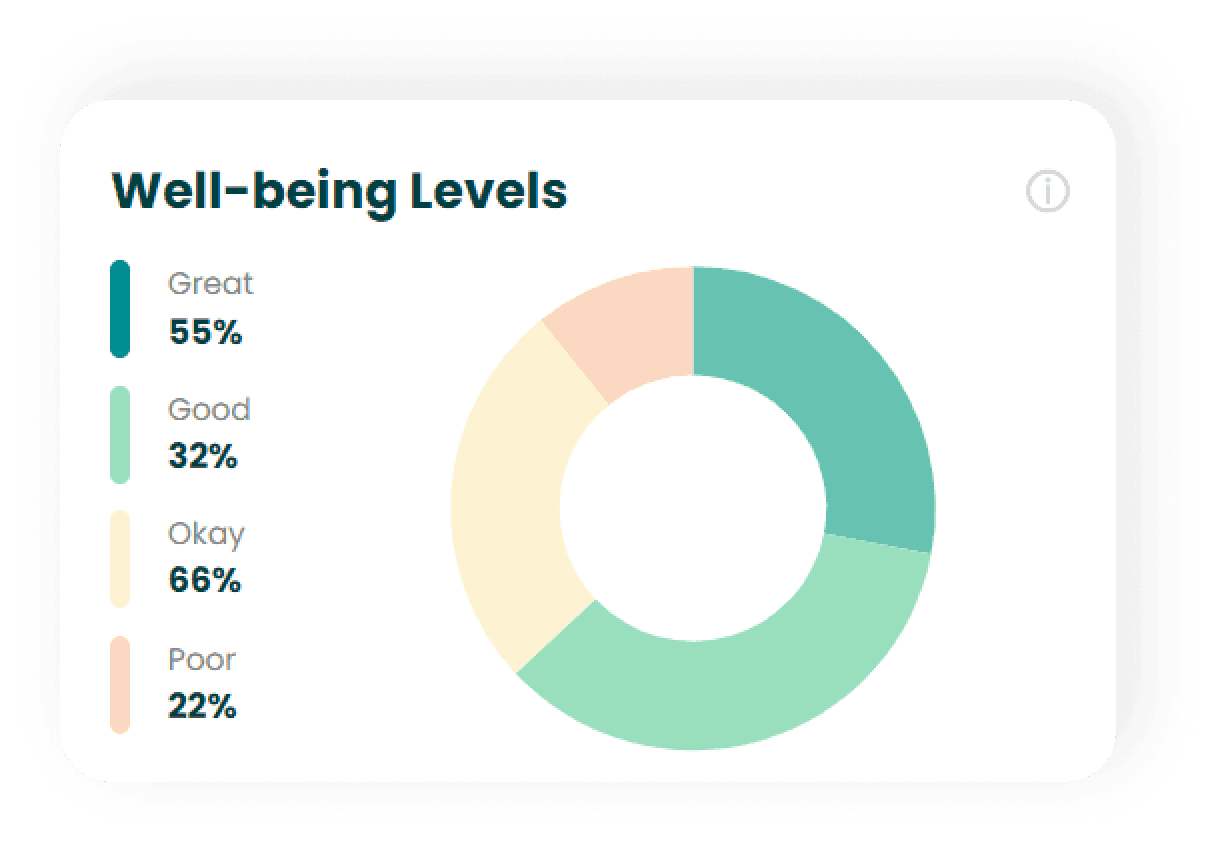
Well-being levels enable you to understand how many of your employees are doing poor, okay, good or great, respectively - in regards to their level of perceived well-being.
In the illustration below, you can easily identify how the employee's well-being scores are currently distributed. This allows for a categorized breakdown of the overall well-being score, which gives an indication of a skewed or normal distribution.Remember: A total well-being score of e.g. 76 can be made up of many different compositions. For example, the case of many employees with great well-being levels and a few with poor could amount to the same total well-being score as if all employees scored good. Hence, posing different realities and focus areas.
What scores do the different levels represent?

Here is a tip. 💡 By knowing where your employees rank in the well-being you can predict the likelihood of them recommending the organization.
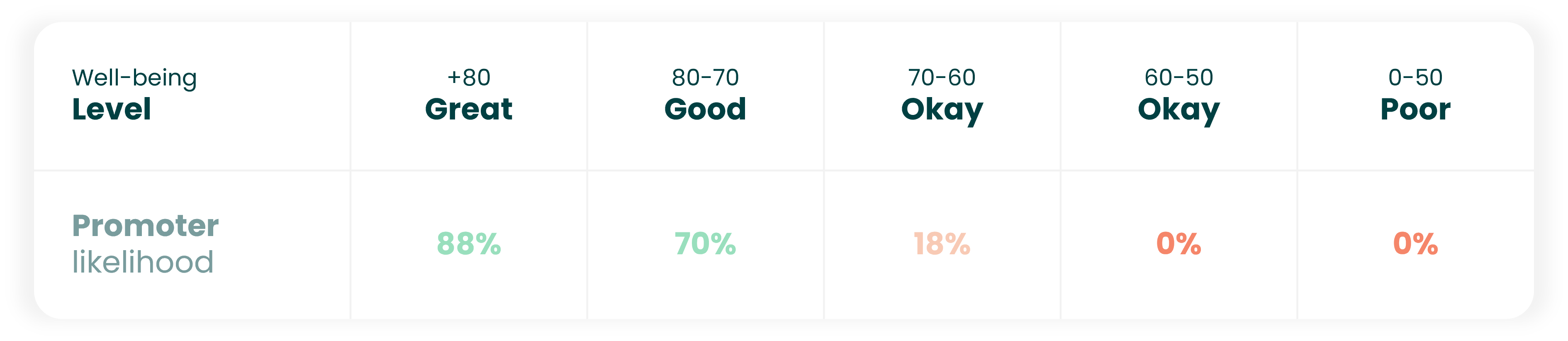
The matrix above shows the likelihood of your employees being promoters for your company depending on their well-being level. Click here to read more about promoters and the eNPS.
You might also find this interesting. 👀
Well-being team matrix.
Learn how to read and interpret the well-being matrix.
Track the development of the well-being score for each team.
Know which teams are doing great and which might be lacking behind.
How to use the matrix.
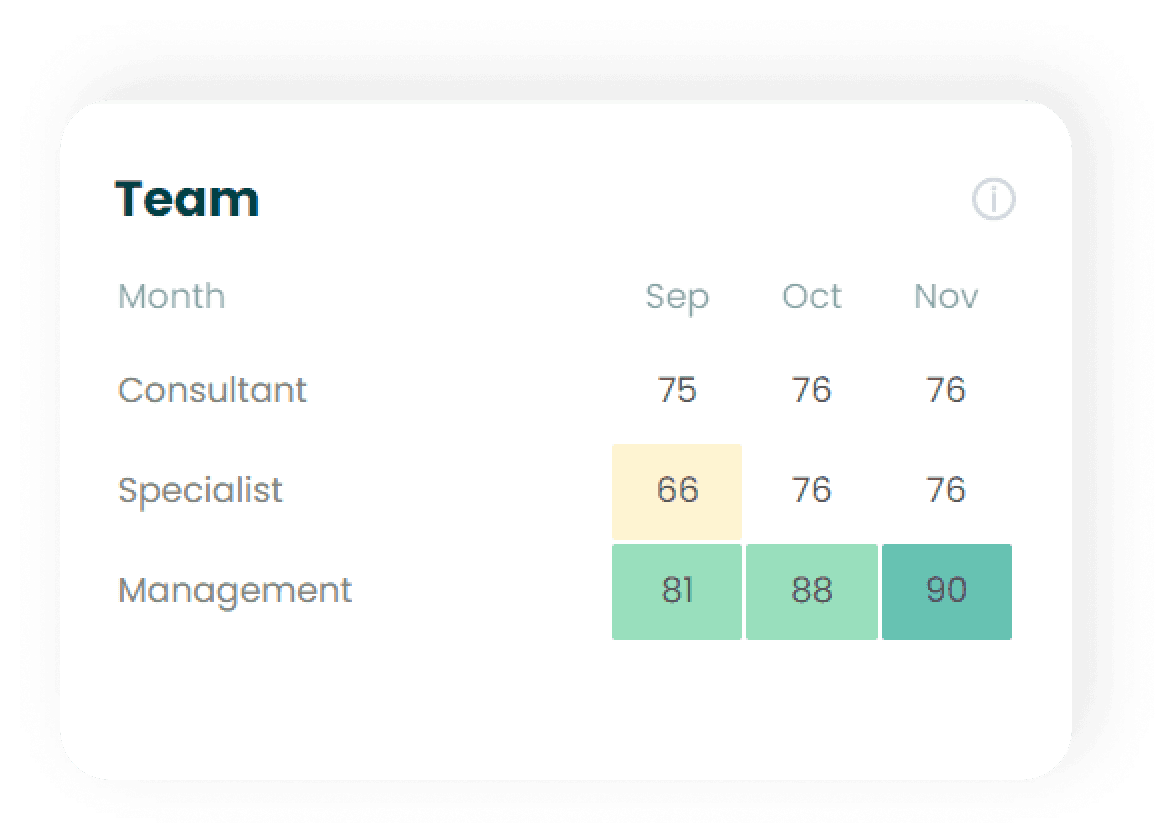
The team matrix shows the well-being score of each team in the three last months. This enables a quick overview of the development in well-being for each team. Furthermore, you can easily spot potential outliers, so you know which teams are consistently doing great and which to focus on analyzing further and improving.
Pro tip. 💡 If you want to analyze the root causes for a low scoring team, you can jump to Analyze → Drivers. Here you can also see which well-being drivers are most important to the employees in this team. Read more here.
How to read the matrix.
For example, the matrix above shows that the specialist team had well-being score of 66 in September, 76 in October, and 76 in November. This demonstrates a significant improvement between the first two months and indicates a consistent new level of well-being.
You might also find this interesting. 👀
Well-being seniority matrix.
Learn how to read the stress seniority matrix, and how to interpret it.
Quickly identify whether some seniority groups score higher/lower on well-being.
Track the development in well-being for different seniority groups.
How to use the matrix.
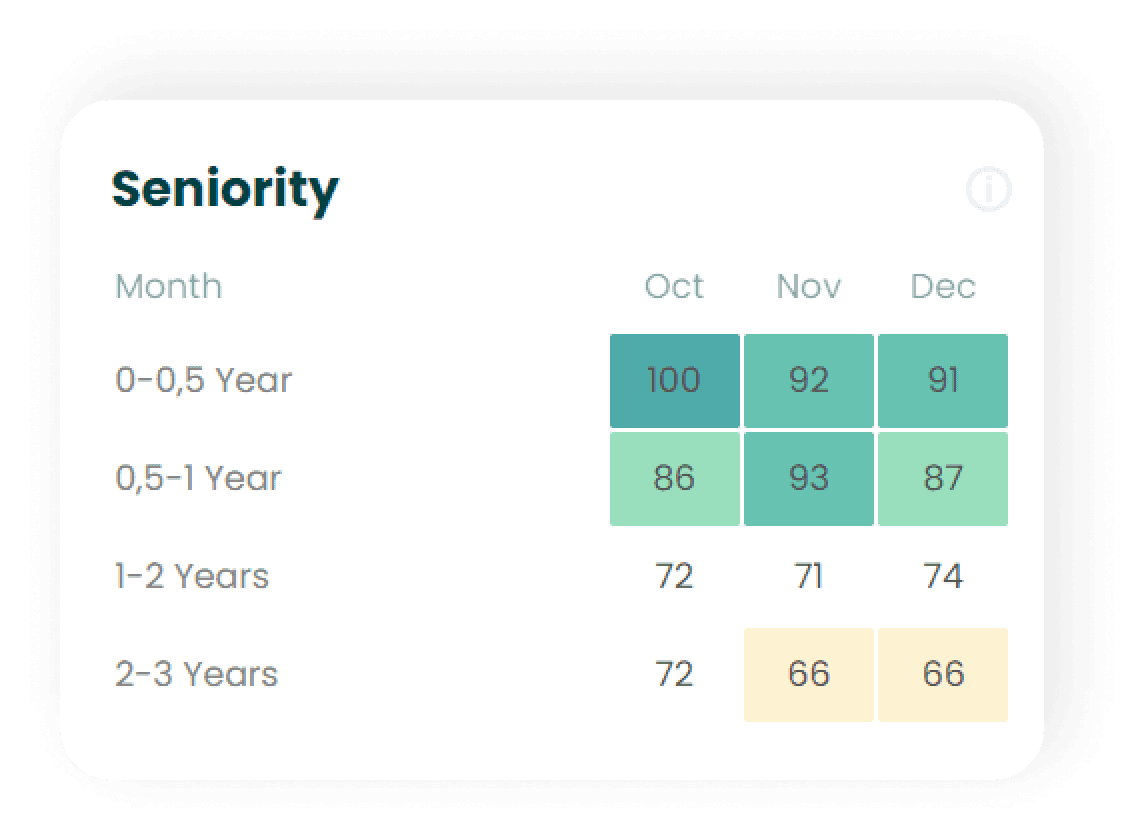
Seniority refers to the amount of time an employee has been with your organization. The matrix shows the well-being score of each seniority group in the three last months. It enables you to get a quick overview of the development in the well-being score for each seniority group. Furthermore, you can easily spot potential outliers, so you know which seniority groups have high scores of well-being and if they have been scoring high consistently over a three-month period.
How to interpret the seniority matrix.
For example, the matrix above shows that employees with a seniority of 2-3 years had a well-being score of 72 in October, and 66 in November, and 66 in December. This is indicative of a negative development and something to be attentive to.
Here is a tip. 💡 Under Employee Journey you can learn much more about the well-being of your seniority groups and how this varies over the course of their employment. Click here to see how.
You might wonder at what level of seniority your employees have the highest well-being score, or if the well-being score is increasing or decreasing with the level of seniority.
You can explore the journey even further by going to "Analyze → Journey" in your people analytics dashboard.
You might also find this interesting. 👀
Stress Report.
Understanding the stress score.
Get to know the stress score.
Quick overview of the development of your organization's average stress score.
How to interpret the stress score.
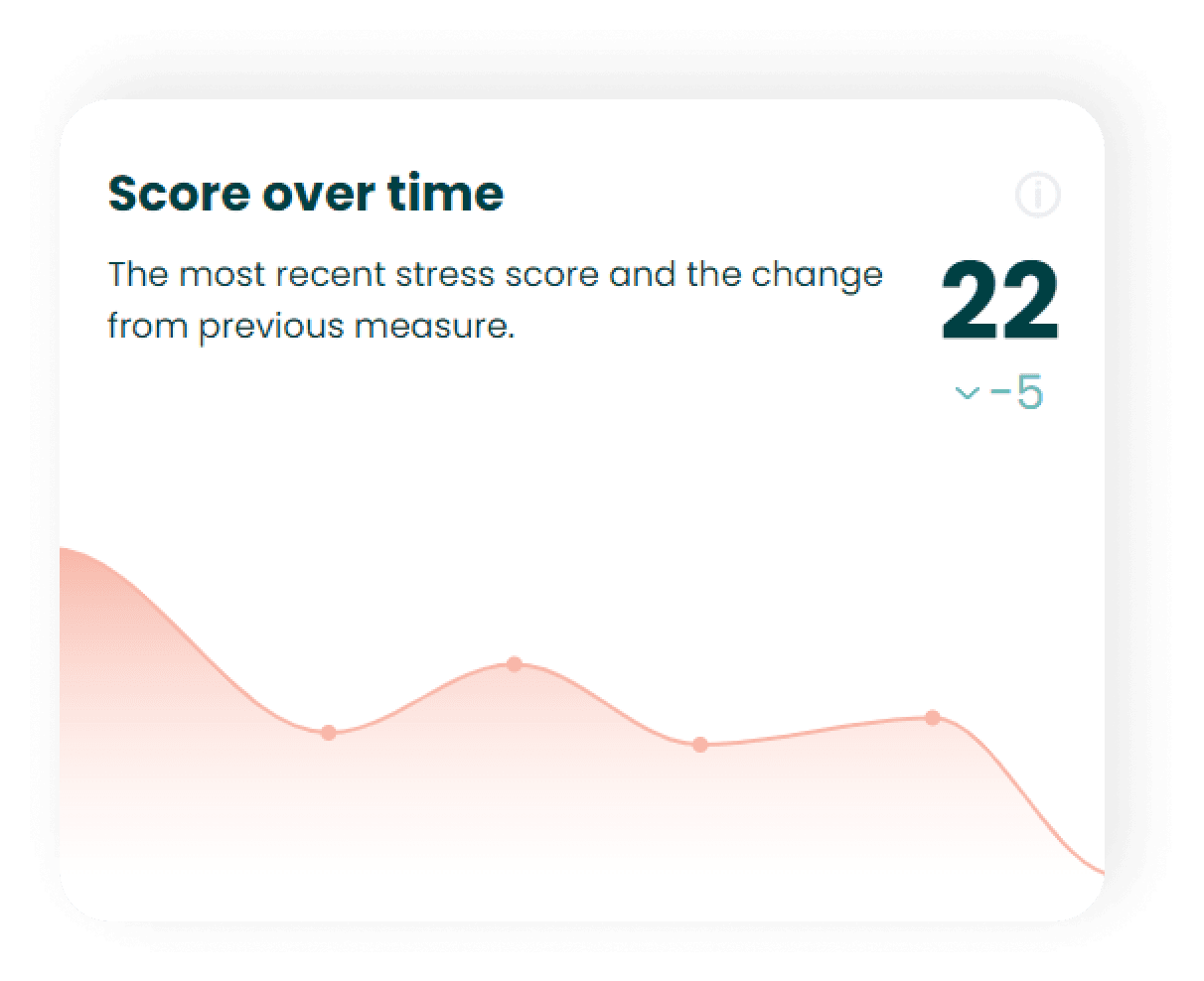
The stress score is a high-level metric. It ranks from 0-100, the closer to zero the better. The score reflects the average stress levels for all your employees. This allows you to understand the current stress levels for your organization and in which direction this is trending.
Here is a tip. 💡 The stress score is driven by multiple factors. Click here to learn more about the most important driver for stress.
What are the dots on the graph?
The dots on the graph represents each month stress has been measured and enable you to track the development in the stress score month over month. 📈
You might also find this interesting. 👀
Stress movement chart.
This article describes how to interpret the stress movement chart and how it can help you track stress in your organization.
Track whether it is the same few employees that remain stressed month after month.
Explore if certain months or periods cause employees to be stressed.
Understand how many employees are currently stressed in your organization.
How to read the chart.
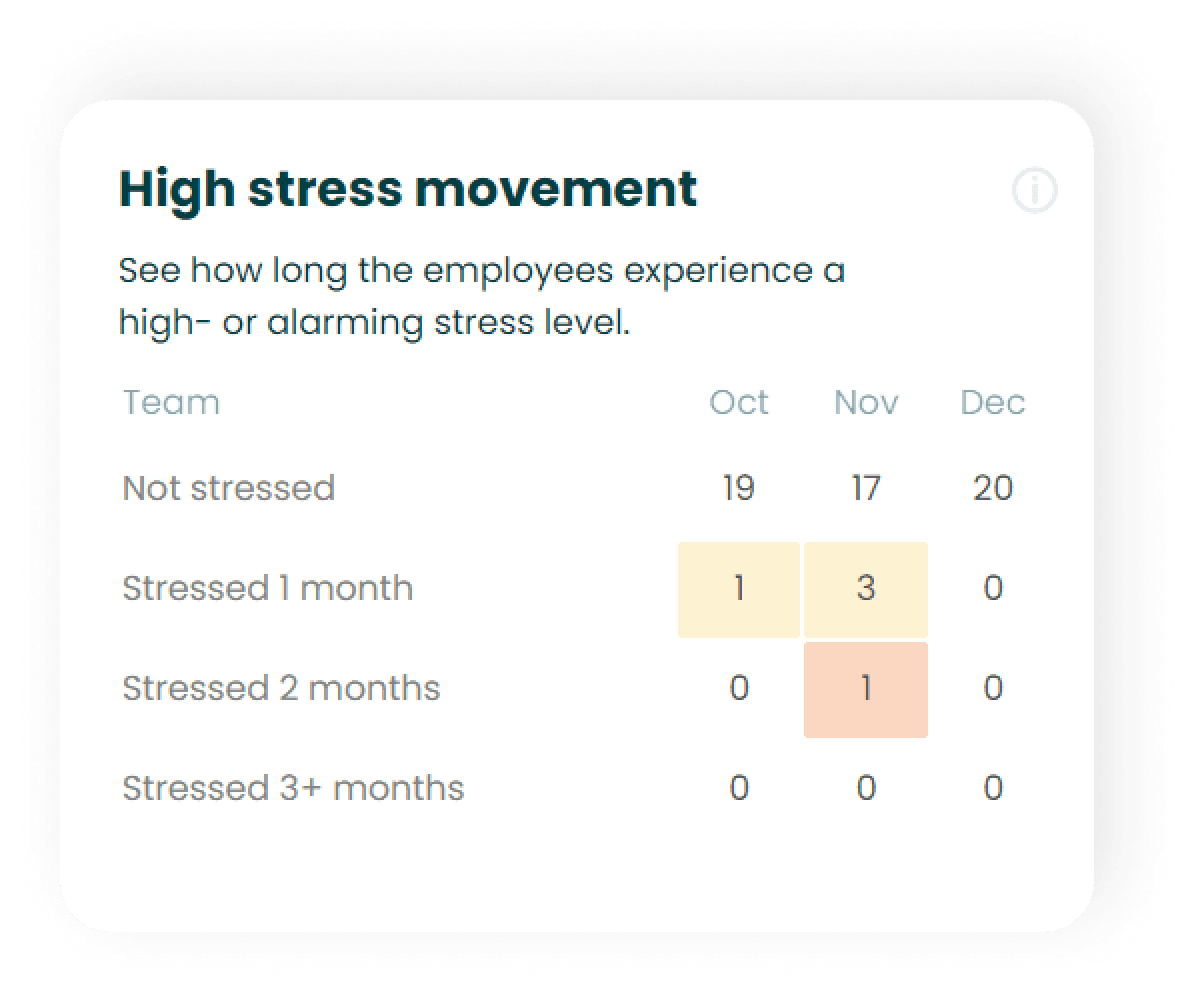
The stress movement chart shows the number of employees that (i) are not stressed, (ii) have been stressed for 1 month, (iii) have been stressed for 2 months in succession (iv) have been stressed for 3 months in succession.
Here is an example of how to use the graph.
In the above illustration, looking at September 19 employees are not stressed and 1 employee is stressed. What we then find looking at November is that 17 employees are not stressed and three new employees have become stressed. We also note that we have one employee in November who has been stressed for 2 months, which means that the employee who was stressed in October is still stressed in November. Looking at December we find that 20 employees are not stressed and we have no stressed employees. This i great hence it indicates that the stress we saw in November might be due to a temporary spike in stress levels.
Use the matrix to track for how long time people are stressed.
Here is an example of how you can use the matrix. 👉Looking at October in the matrix above, we see one new employee with stress. In November, you might want to ask yourself if this person is still stressed one month later? In this case, the answer is no. We know this because by looking at November and the number of employees who have been stressed for two months we can that it is zero. This way, you can tell that the employee who was stressed in October is no longer stressed.
You might also find this interesting. 👀
Stress levels.
Learn how to read and use the stress levels chart.
Understand the current levels of stress and how your employees are distributed.
How to use the stress levels.
Stress levels describe how many of your employees currently have low, medium, high or very high stress levels.
In the illustration below, you can easily identify how the employee's stress scores are currently distributed. This allows for a categorized breakdown of the overall stress score, which reflects how the employees are distributed in relation to stress.
Remember:
A total stress score of e.g. 28 can be made up of many different compositions. For example, the case of just 2-3 employees with very high stress levels and the rest with low stress could amount to the same total stress score as if all employees scored medium. Dependent on how this is distributed this poses different realities, hence different approaches to solve potential challenges.
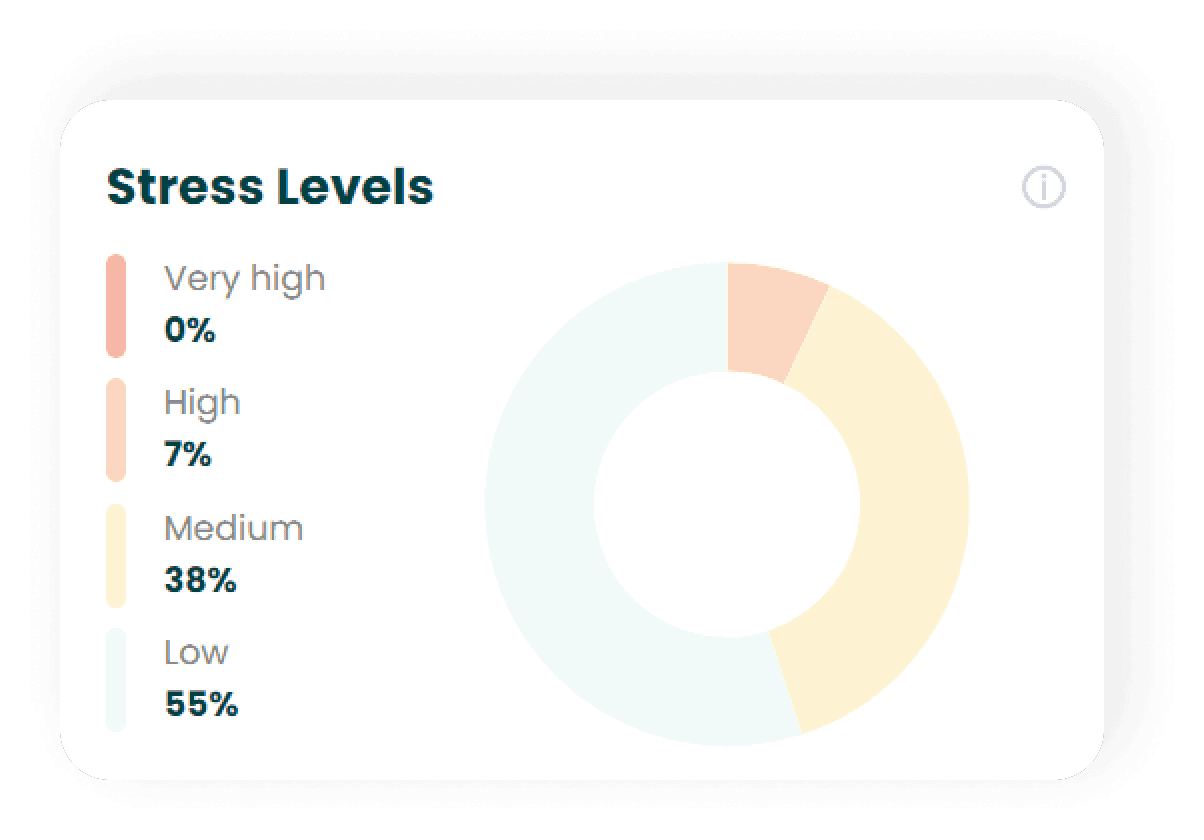
What scores do the different stress levels represent?

The stress score has a very high impact on Well-being.
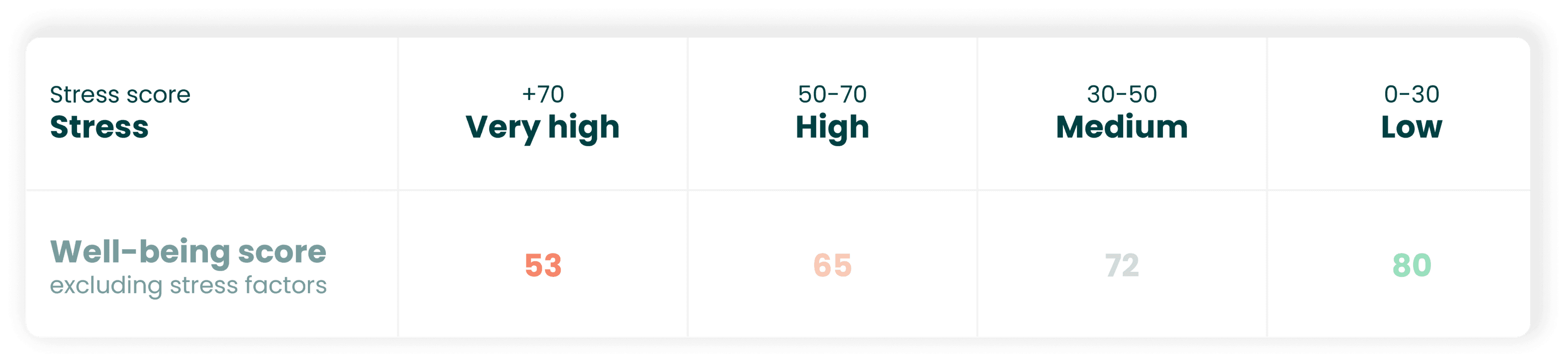
An employee's level of perceived well-being is heavily affected by the stress level. The table below depicts the relationship between employees' stress levels and well-being score. For example, employees with a very high level of stress on average have a well-being score of 53. Thus, high stress levels reduce the perceived well-being, significantly.
You might also find this interesting. 👀
Stress vs. workload chart.
Learn how to read the stress vs. workload chart and how to use it.
Understand whether stress is caused by a heavy workload or something else.
Get a visual representation of the stress and workload scores in each team.
How to use the chart.
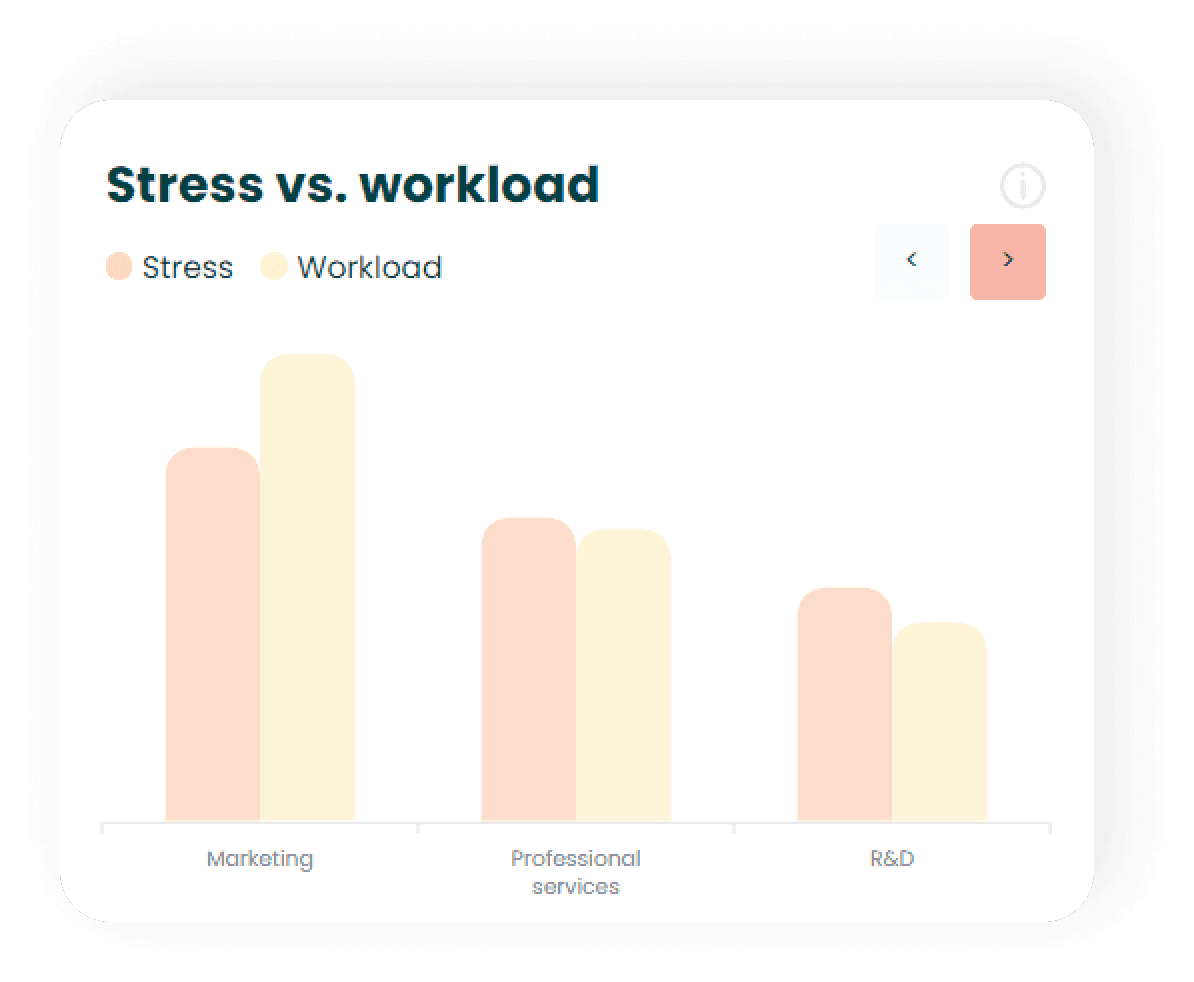
This chart is a visual representation of the stress and workload in each team. You are able to see if a team seems to be stressed due to a high workload or if there could be other reasons like not feeling comfortable in solving the tasks at hand or not feeling able to contribute on the desired level.
How to interpret the chart.
In the chart above you can see the stress and workload metrics for three different teams. For the marketing team, the level of workload is higher than the stress level, which indicates that the stress in this team is caused primarily by the workload. This serves as an important piece of information for understanding the root cause and whether/how to act.
For the professional services team, the stress and workload are equally distributed, which is less straightforward to interpret. However, as the workload is still somewhat high it is likely that reducing this will also reduce the overall stress level, significantly.
For the last team, the R&D team, the stress level is slightly higher than the workload and the workload is relatively low. This indicates that the stress in this team is likely to be triggered by another cause than workload. Some of the common factors relate to insecurity in the quality of work one delivers, lack of interest in the current tasks at hand, or organizational changes.
Pro Tip. 💡 To get a deeper understanding of what the root causes to stress (Mindful) are. You can send out short deep-dive surveys to teams or small segments of your organization. Click here to see more.
Case example of workload vs. stress in practice.
During November, one company experienced higher levels of stress in the Marketing team than they were used to, naturally this concerned the manager. But should the manager be worried?
The answer to this question requires a bit of context. The marketing team had their biggest campaign of the year that had to be delivered in the weeks leading up to Black Friday. Looking at the Marketing team again, the Manager could see that workload was higher than usual and might be the reason for the elevated stress levels this month. Following up with the team in December both stress and workload had decreased and normalized. Hence, the manager should not be too worried about the stress levels, as this was caused by a temporary spike in the team's work.
The moral of the story, if the nature of the business, your organization or team conduct are influenced by seasonality, you should see the stress scores through this lens. Be attentive, follow up the next month and make sure things normalize again. Short periods with extra work, and higher levels of 'stress' are completely normal, but you should be cautious and follow the development closely as it is unsustainable over longer periods.
You might also find this interesting. 👀
Stress team matrix.
Learn how to read and interpret the stress team matrix.
Spot which teams are doing great and which might deviate from the rest.
Track the development of the stress score for each team.
Quickly understand if any of your teams are experiencing spikes of stress in certain periods.
How to read the matrix.
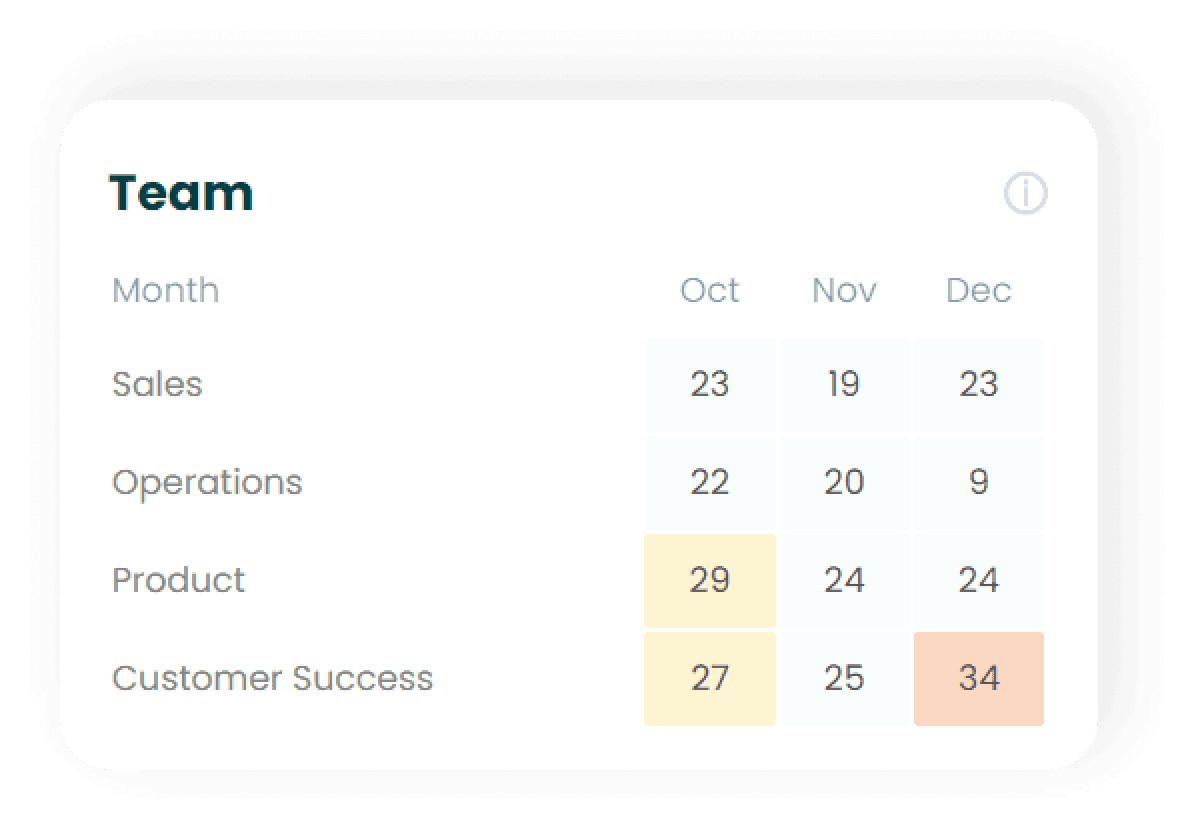
The team matrix shows the stress score for each team in the three last months enabling a quick overview of your teams' stress development.
Furthermore, you can easily spot potential outliers, so you know which teams have low stress and which teams might have been stressed for a period of time
How to read the matrix.
For example, the matrix above shows that the Operations team had a stress score of 22 in October, 20 in November, and 9 in December. This reflects a positive development and a very low stress level in December. On the other hand, the Customer Success team has a score of 34 in December, which is significantly higher than the other teams and a clear focus area.
You might also find this interesting. 👀
Stress seniority matrix.
Learn how to read the stress seniority matrix, and how to interpret it.
Quickly identify if some seniority groups have high/low stress scores.
Track the development in stress for different seniority groups.
How to use the matrix.
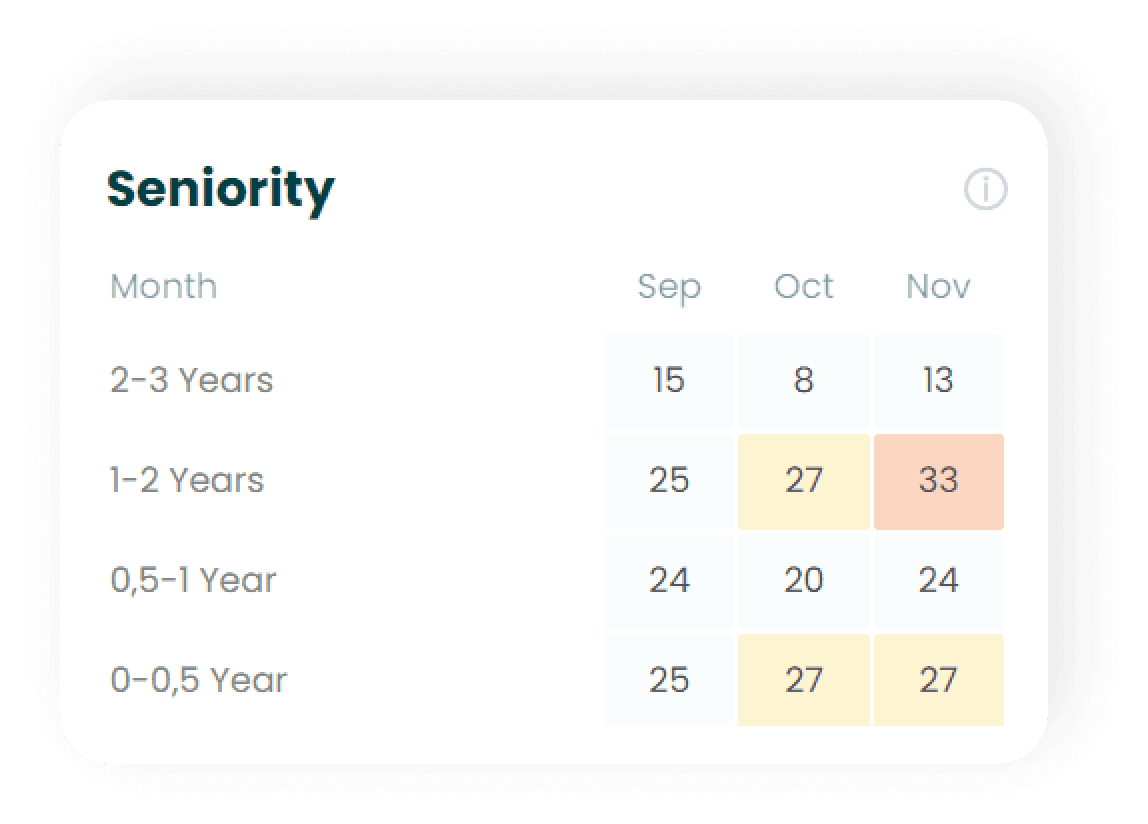
Seniority refers to the amount of time an employee has been with your organization. The matrix shows the stress score of each level of seniority in the three last months. It enables you to get a quick overview of the development in the stress score for each seniority group. Furthermore, you can easily spot potential outliers and understand which seniority groups have high scores of stress and if they have consistently been high over the last three months.
How to read the seniority matrix.
For example, the matrix above shows that the seniority level 2-3 years had a stress score of 15 in September, 8 in October, and 13 in November.
Here is a tip. 💡 Under Employee Journey you can learn much more about the stress score of your seniority groups and how this varies over the course of their employment. Click here to see how.
You might wonder at what level of seniority your employees experience the lowest levels of stress and why? or if the stress score is increasing or decreasing the longer an employee has been with the organization?
You can explore the journey even further by going to "Analyze → Journey" in your people analytics.
You might also find this interesting. 👀
eNPS Report.
Understanding the eNPS.
Learn what eNPS means, how it is calculated, and how to use it.
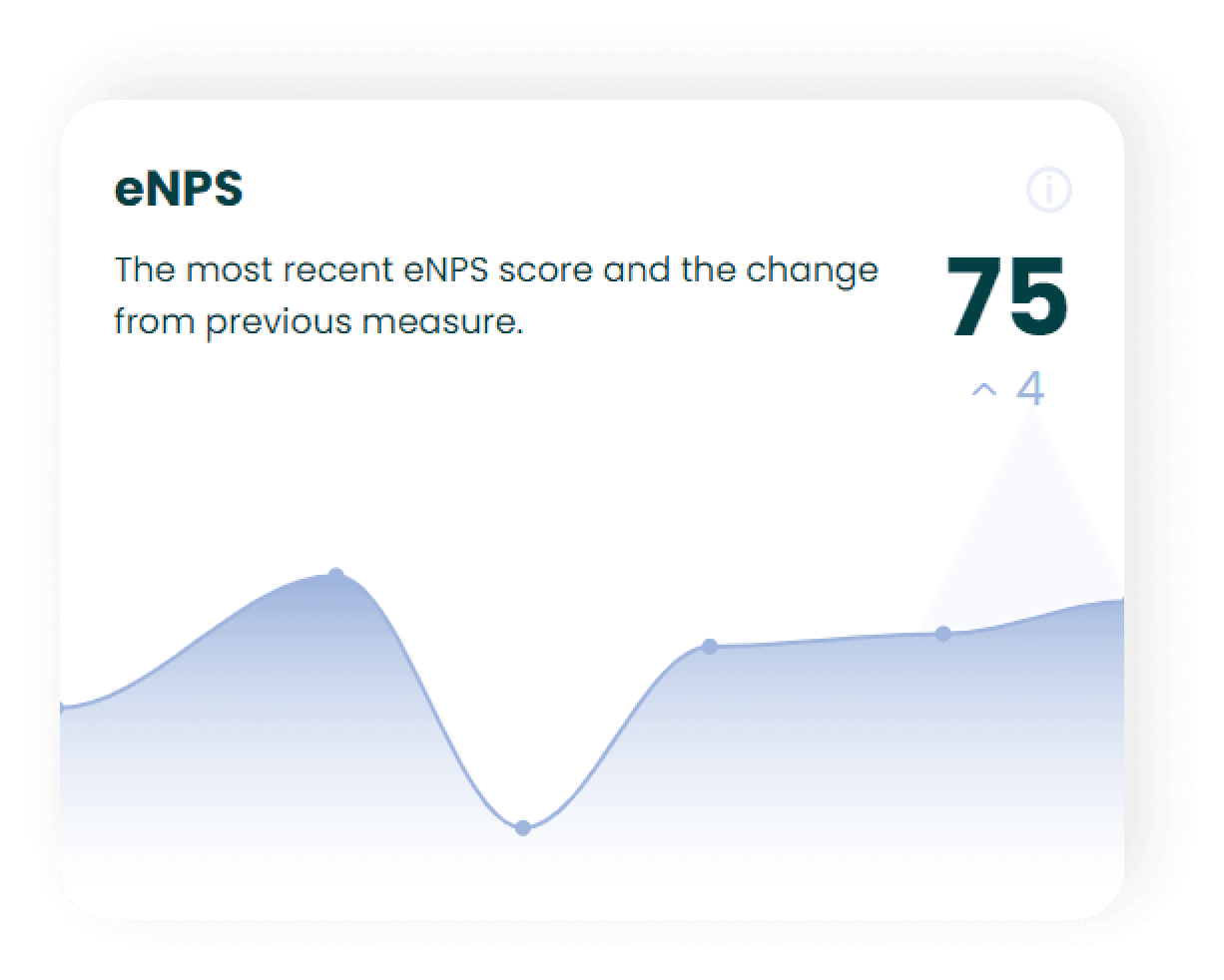
Quick overview of the eNPS development for your organization.
Understand how likely your employees are to recommend your organization.
Benchmark your eNPS with other organizations.
What does the eNPS mean?
eNPS is short for employee Net Promoter Score. The score is based on the employee's likelihood of recommending their workplace to ex-co-workers, friends, and family. The question can be answered from 0-10 where 0 is very unlikely to recommend and 10 is very likely to recommend.
What is a good eNPS?
The average eNPS vary across industries, but a commonly accepted average is around 14. That might seem low but keep in mind the way the eNPS is calculated.
- An eNPS higher than 10 indicates you have a few more promoters than detractors and is considered fine.
- eNPS over 30 indicates that you have considerably more promoters than detractors and is considered good.
- eNPS over 50 is not easy to reach. It indicates a loyal group of employees who are happy to recommend your organization and is considered great.
- eNPS higher than 80 is considered world-class. Almost all of your employees are willing to recommend you as a workplace, and you have truly gained a competitive advantage in regards to attracting new candidates.
Did you know? The higher your employees score in well-being, the more likely they are to recommend your organization.
What do the answers show?
The eNPS score consist of the following three categories:
- 9-10: These employees are your Promoters.
- 7-8: These employees are your Passives.
- 0-6: These employees are your Detractors.

Promoters are extremely satisfied employees who are very likely to recommend your organization.
Passives are neutral employees who are neither emotionally invested nor disengaged. They are not likely to recommend but also not likely to speak ill about your organization.
Detractors are not satisfied with the organization and are somewhat likely to spread negative vibes about your organization to their network.
How the eNPS is calculated.
The eNPS is not an average of all the scores as one might think. Instead, it is calculated by subtracting the total percentage of promoters (score of 9 or 10) from the total percentage of detractors (score of 0-6). So, it looks like this:
%Promoters - %Detractors = eNPS.
As can be seen from the above calculation, the passives (score of 7 or 8) are left out of the eNPS calculation.
You might also find this interesting. 👀
eNPS distribution.
Learn how to read the eNPS distribution chart and what it tells you.
Allows you to understand if some employees are passives, but perhaps close to being a promoter.
Get a quick overview of how your employees' likelihood of recommending your organization is distributed.
How to use the eNPS Distribution chart
The eNPS Distribution chart allows you to get behind the standard eNPS categories detractor, passive, and promoter and get a better understanding of the actual distribution. For instance, this enables you to understand if you have a large pool of passives, we could call them swing-voters, that might be promoters next month. Or if the detractors you might have are in fact close to being passive.
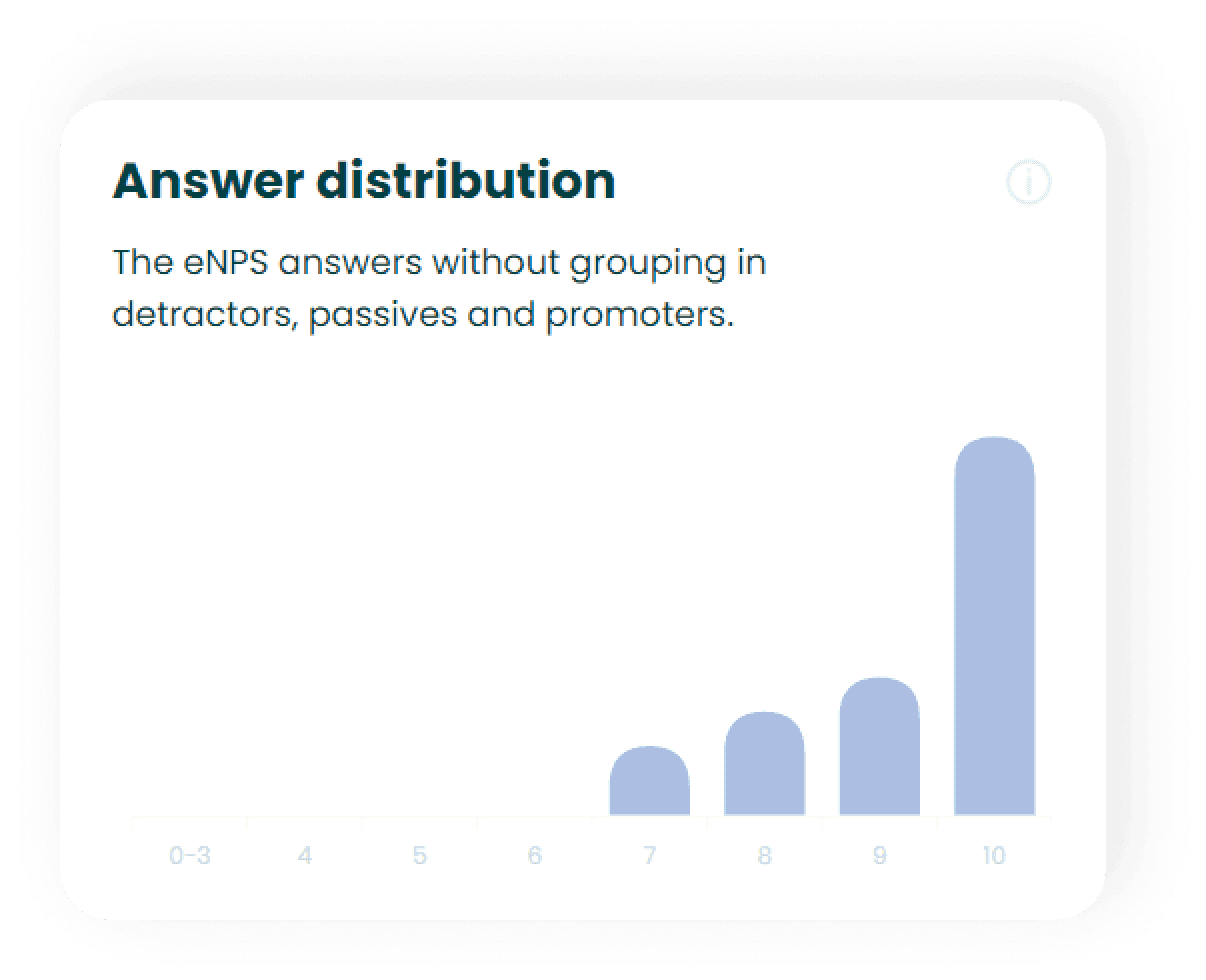
This is how the eNPS answers are categorized.
The eNPS consist of the following three categories:
- 9-10: These employees are your Promoters.
- 7-8: These employees are your Passives.
- 0-6: These employees are your Detractor.
Learn more about eNPS and different categories here.
Do you think the eNPS varies a lot? Don't worry we will break it down through an example.
You might experience that the total eNPS can sometimes have changed 15 points from one month to the next, which can cause concern and confusion. But fear not, this is due to the nature of how the eNPS is calculated which means that tiny deviations in employees' answers can express themselves as a bigger change than they actually are, but fear not we will break it down for you a bit here.
You might have guessed already, but since the calculation reads: % of promoters subtracted the % of detractors, there is a big difference if a group of employees that used to answer 9 are now, for some reason, answering 8. In other words, they fall out of the promoter category and into the passive category and are excluded from the calculation.
In the example below we have two different months. The first month there are 14 employees answering 6, hence falling into the detractors category, with the overall eNPS amounting to 29.
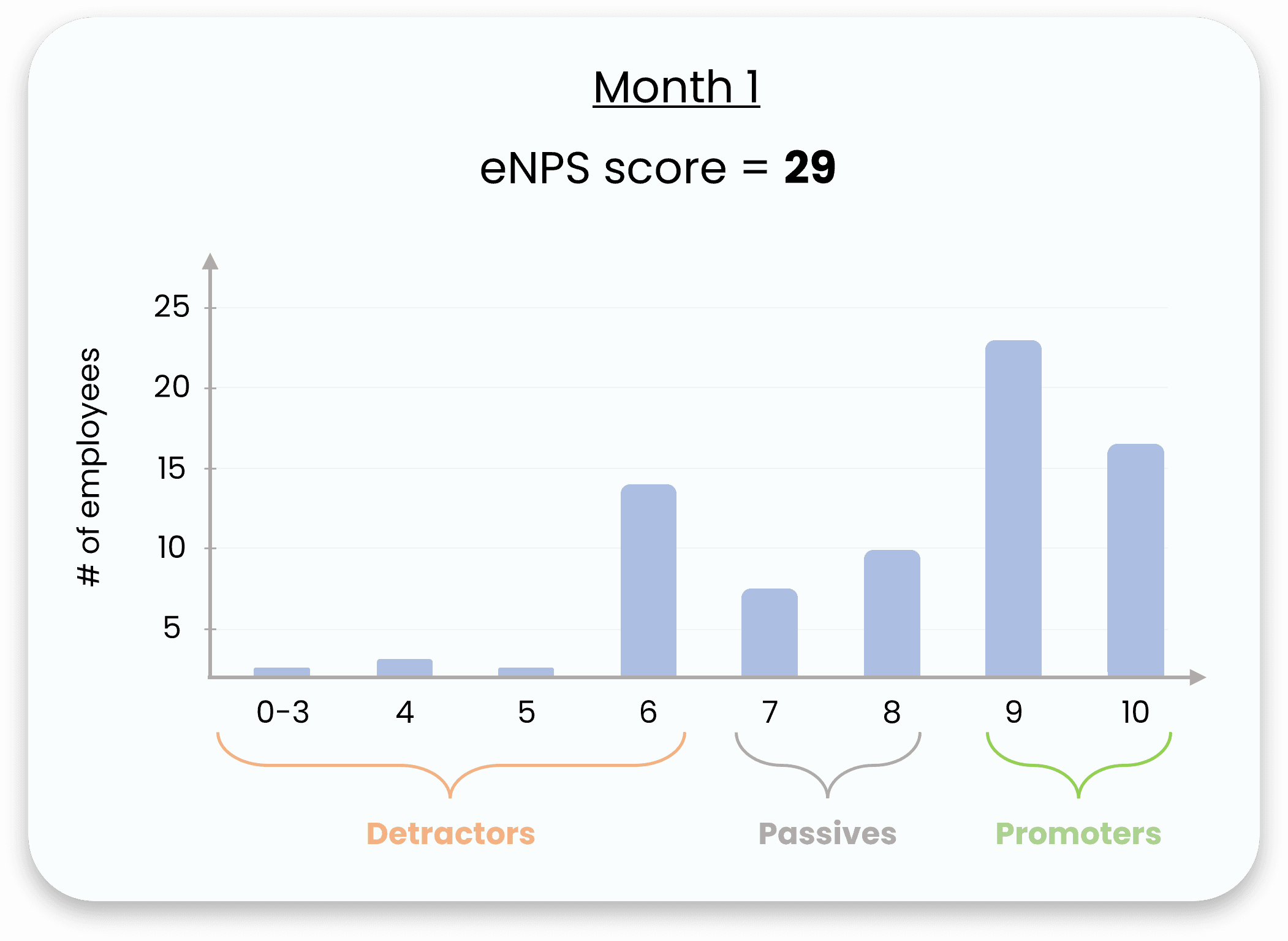
Now, in the following month, 10 of these detractors answer 7 instead of 6 and are now considered passives. This results in a much smaller percentage of detractors being deducted from the promoters. Hence, we see a significant increase in the overall eNPS from 29 to 42.
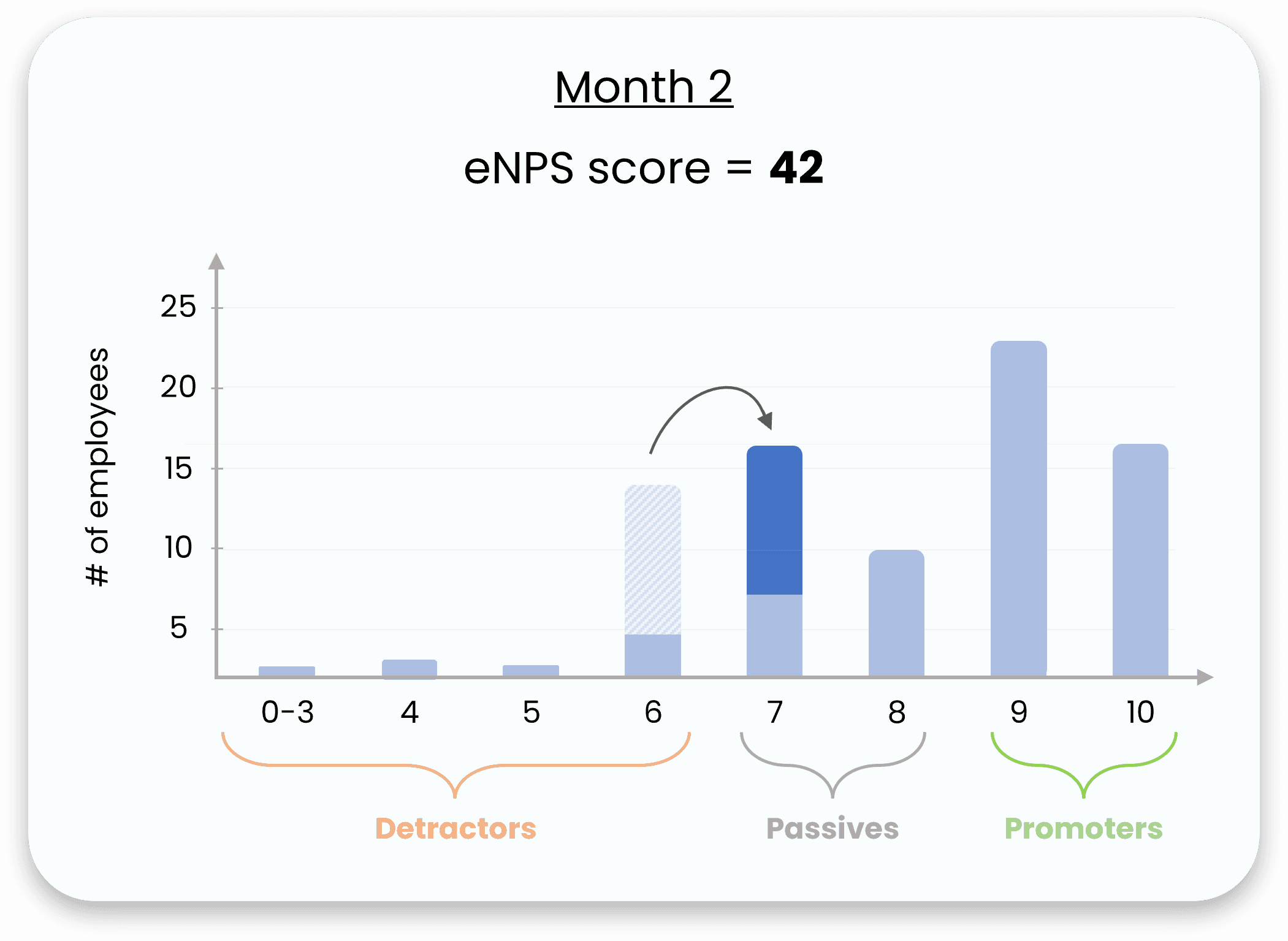
So the two main takeaways are that (i) the overall eNPS for your organization might sometimes vary a lot, but the reason can easily be found in the eNPS distribution chart and might be caused by very subtle changes. (ii) Small incremental improvements in well-being and the workplace can turn your employees from passives to ambassadors of your organization.
You might also find this interesting. 👀
Detractor movement chart.
Learn how to read the detractor movement chart and how to interpret it.
Track whether it is the same employees that remain detractors month after month.
Understand how many people are currently detractors.
How to read and interpret the chart.
The detractor movement chart shows the number of employees that (i) are non-detractors, also known as promoters or passives, (ii) have been detractors for 1 month, (iii) have detractors for 2 months in succession (iv) have been detractors for 3 months in succession.
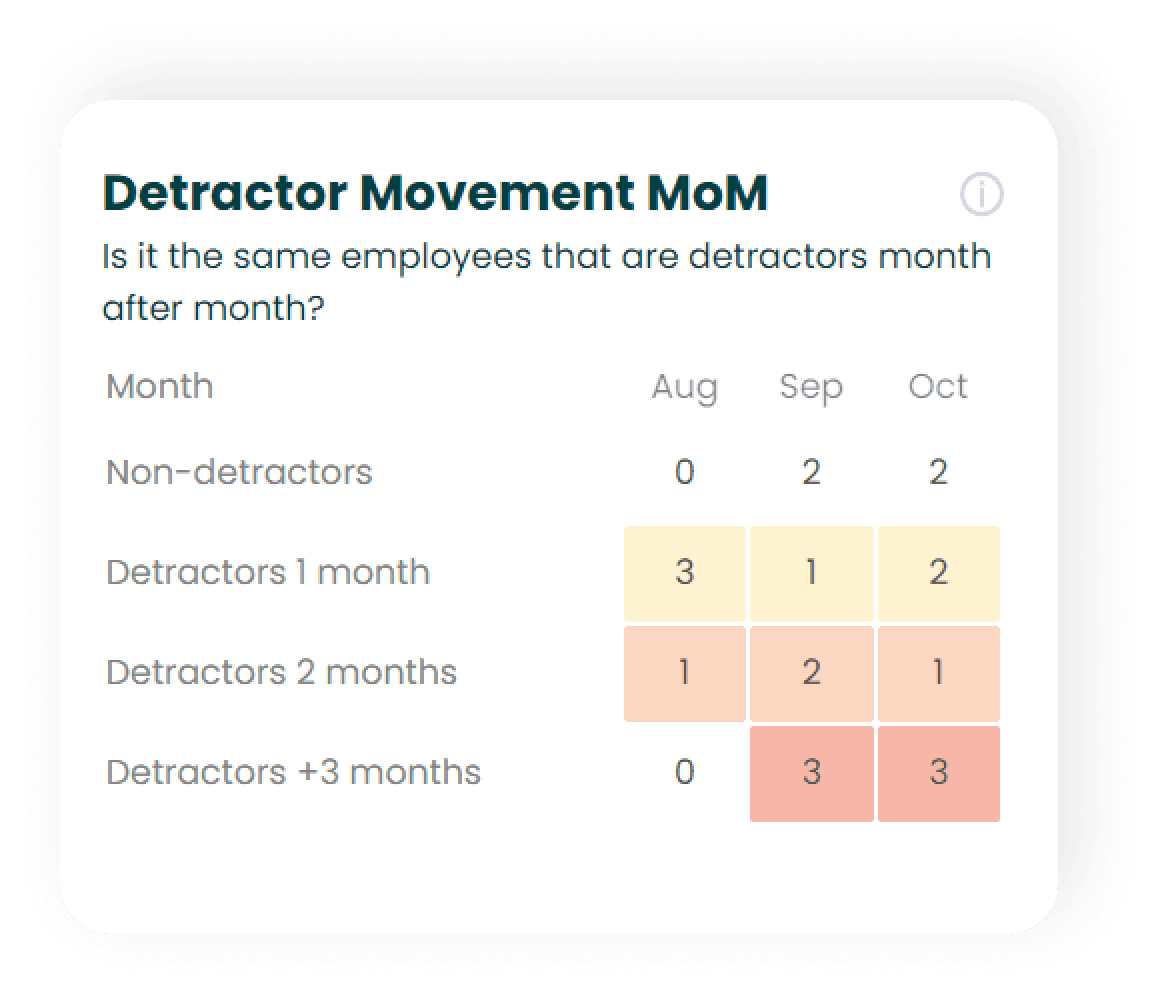
In the above illustration, one can read from the chart that in August three employees has fallen into the detractor category for the first time. Further, one employee has been a detractor the last two months, which means this person not only fell into the detractor category in August but also in July - the month before.
Use the matrix to track for how long time people are detractors.
Here is an example of how you can use the matrix. 👉 Looking at September we see one new detractor. You might now want to ask yourself, is this person is still a detractor? In this case, the answer is yes. We can know that for sure by looking at October and the number of employees who have been detractors for two months. As we see looking at the chart the number of employees who have been detractors for two months in October is one. In that way, we can tell that it's still the same employee who is a detractor. Let's say that the employee had stopped being a detractor. In that case, we would have seen the number zero looking at October and employees being detractors for two months.
You might also find this interesting. 👀
eNPS team matrix.
Learn how to read and interpret the eNPS team matrix.
See how each team scores on eNPS.
Track the development of the eNPS for each team.
Understand if some teams are more or less likely to recommend your organization.
How to read the matrix.
The eNPS team matrix shows the eNPS for each team over the last three months. It enables you to get a quick overview of the eNPS development for each team.
Furthermore, you can easily spot potential outliers, so you know which teams are consistently doing great and which to focus on improving.
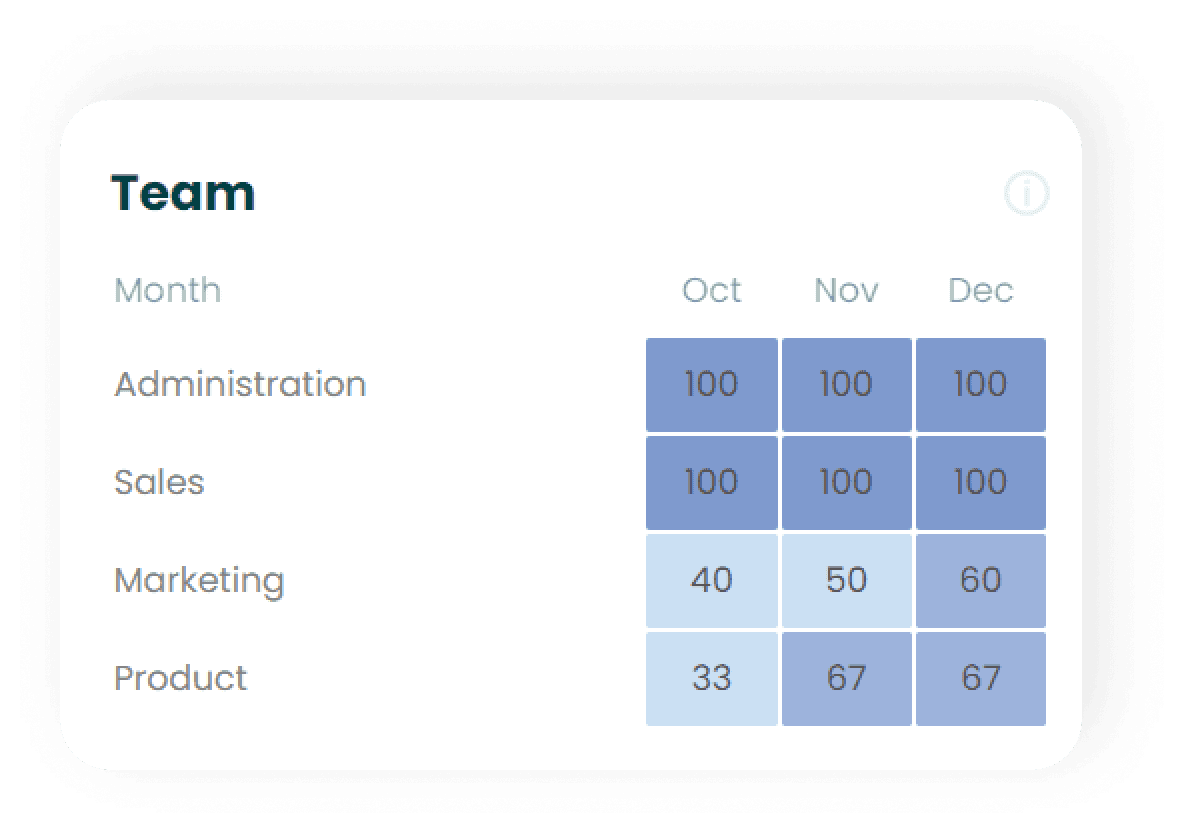
How to read the matrix.
For example, the matrix above shows that the Marketing team had an eNPS of 40 in October, 50 in November, and 60 in December. This demonstrates consistent eNPS improvement for this team over the last three months.
You might also find this interesting. 👀
eNPS seniority matrix.
Learn how to read and interpret the eNPS seniority matrix.
Quickly identify whether some seniority groups score higher/lower on eNPS.
Track the development in eNPS for different seniority groups.
How to use the matrix.
Seniority refers to the amount of time an employee has been with your organization. The matrix shows the eNPS of each seniority group in the three last months. This enables you to get a quick overview of the development in the eNPS for each seniority group. Furthermore, you can easily spot potential outliers, so you know which seniority groups are highly likely to recommend your organization and if they have been scoring high consistently over the three last months.
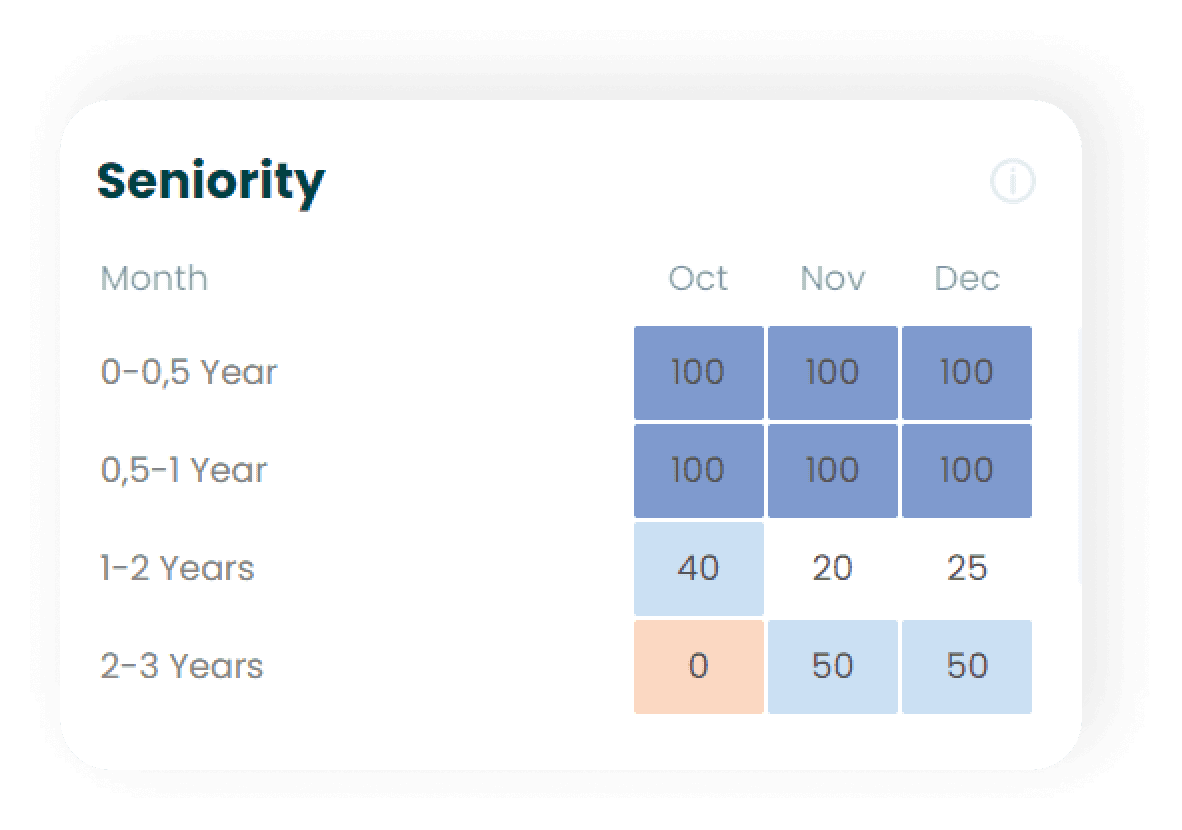
How to read the seniority matrix.
For example, the matrix above shows that employees with a seniority level of 1-2 years had an eNPS of 40 in October 20 in November and 25 in December.
Here's a tip. 💡 By looking at the eNPS across different seniority groups you will be able to see whether your new or more tenured employees are likely to recommend your company to an ex-co-worker or friend.
You can explore the employee journey even further by going to "Analyze → Journey" in your analytics. Click here to learn much more.
You might also find this interesting. 👀
eNPS levels.
Learn how to read and use the eNPS levels chart.
Understand the current levels of well-being and how your employees are distributed.
How to use the eNPS levels.
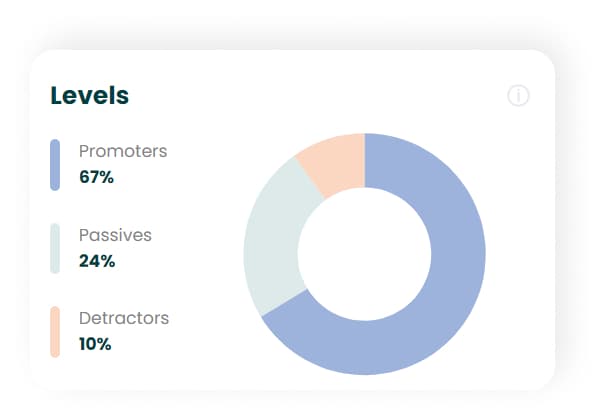
The eNPS levels enable you to understand the percentage of employees being detractors, passives and promoters in regards to eNPS.
In the illustration below you can easily identify how your employees are distributed in the three categories. This allows for a categorized breakdown of the categories, which gives an indication of a skewed or normal distribution.
What do the different categories represent?
The eNPS score consist of the following three categories:
- 9-10: These employees are your Promoters.
- 7-8: These employees are your Passives.
- 0-6: These employees are your Detractors.
Promoters are extremely satisfied employees who are very likely to recommend your organization.
Passives are neutral employees who are neither emotionally invested nor disengaged. They are not likely to recommend but also not likely to speak ill about your organization.
Detractors are not satisfied with the organization and are somewhat likely to spread negative vibes about your organization to their network.
Remember you can Learn more about eNPS and different categories here.
You might also find this interesting. 👀
Analyze your data.
Learn how to use employee journey and measure which drivers are the most important.
Most important drivers.
The most important drivers.
Explore which drivers are the most important for your employees.
Learn to interpret "the most important drivers" and get an overview of which to act on.
Understand the culture of your organization, teams, and employee segments.
Here are the 2 steps you need to know to use drivers. ✔️
Select the dimension you want to know more about.
The closer the driver's color is to red - the more important the driver is.
Know what matters to your employees so you know where to take action.
Understanding what is essential for your employees is not easy. So we made it easy. By looking at the relationship between the well-being drivers and the overall well-being score, we can tell what the most important for your employees.
You can choose to see the most critical drivers for the whole organization, but often you are better off looking at the team level.
A guided tour through the "most important drivers" section.
To fully understand how to use the driver section, there are two important terms, dimension and segment, that need some specification.
Dimensions are different ways of classifying your employees. Examples of dimensions are department, team, location, seniority, etc.
Segments are the different groups within each dimension. So, for the dimension team, the segments could be Marketing team, Finance team, and Customer Success team. Or for the location dimension, the segments could be Copenhagen Office, Berlin Office, and London Office.
Great, with the terminology out of the way, let's move on. 👉
1. Choose the dimension you want to know more about.
Let's say we want to get an overview of the well-being of our different departments. To do this, you simply navigate to the Analyze section in the navigation bar and select drivers. Here, the whole organization will show as default, but to go to the dimension of interest, department, simply select this in the tab bar at the top of the screen.
2. Understand how to read the graphs.
With the dimension of interest selected, a quick overview of the most important drivers for each department will appear beneath. This is a summary of the most important drivers to work with in order to make the most significant impact on well-being in the context of your departments.
Hovering your mouse over the different drivers, you will see a total constituted of three measurements (i) Driver's importance, (ii) Room for improvement and (iii) potential. Potential is a weighted average of (i) Driver's importance, (ii) Room for improvement. The two drivers with the highest score in Room for improvement are the ones you should try to improve, hence it will have the biggest impact on the well-being of that department.
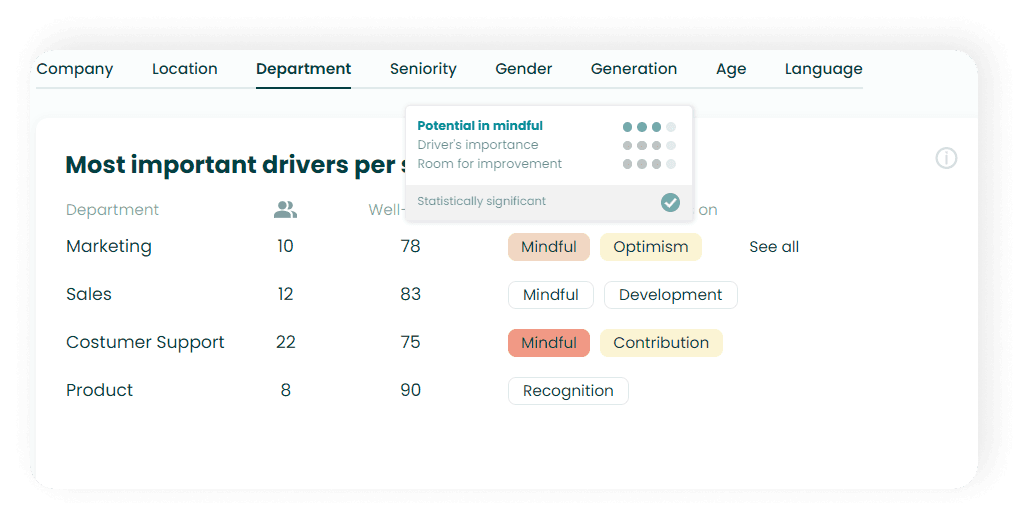
Driver's importance measures how important a specific driver is for the employees in a given segment, e.g., the marketing team. An employee's perceived well-being is constituted of the eight well-being drivers, but naturally, some drivers are more important than others, and this varies from team to team. Hence, we are looking to improve the well-being driver(s) that are most important to the employees in the given team, as this will have the most significant positive impact on overall perceived well-being.
Looking at the above illustration, the marketing team has a Driver's importance score of 4 for the mindful driver. But what does this mean?
To give you an accessible overview of the importance of the drivers, we turned the math and the numbers behind the calculations into four dots. Behind the dots are the following numbers ranging from 1-100.
- 0-10 = 0 dots
- 11-30= 1 dot
- 31-45 = 2 dots
- 46-60 = 3 dots
- 61+ = 4 dots
To give you an example of what these numbers mean; think about this: A score of 67 means that increasing the score for this driver by 10 will very likely increase the overall well-being score by no less than 6,7. This indicates a strong relationship between the specific driver and the overall well-being of this team.
Room for improvement measures how hard or how easy it is to improve a driver's score. The higher a given segment (e.g., marketing team) scores on a driver today, the harder it is to improve the score and vice-versa. Thus, when a segment of employees scores 90, or above, it is considered great and not something one can expect to affect and improve further. So, bear this in mind when deciding which driver you want to work with. The more dots a driver has in "room for improvement", the easier / less complicated it is to improve the driver.
Potential is a weighted average of the two scores mentioned above. Use this score as your main indicator to understand which driver is most meaningful to focus on and work with. The more dots, the bigger the potential.
Statistically significant is a measure of how likely it is that potential is correctly estimated. In other words, how likely is it that there is in fact a strong relationship between the specific driver and overall well-being. In the illustration above, it says Statistically significant which simply means that the relationship is to be trusted. In the first few months of data collection, or if you create new segments, you might experience some drivers that will say "not Statistically significant". This means that it's not sure that there is a strong relationship between the driver and overall well-being.
Rule of thumb. 👍 Disregard the drivers that say not Statistically significant.
When hovering the mouse over the driver, you will see that "statistically significant" can be marked with a green, yellow or red icon.
If green, you are good, and the results can be trusted with a likelihood of 95% or above.
If yellow, you should be aware that the chance of the relationship being true is only between 90%-94,99% and might not be trusted.
If red you should discard the driver, hence the likelihood of the driver having the most significant effect on the well-being is below 90%.
Scores for each segment
The driver scores for each segment can be seen from the Heatmap at the bottom of the screen. This provides an overview of all the segments and drivers and allows you to quickly spot and identify which drivers are particularly low today and could be a relevant focus for improvement.
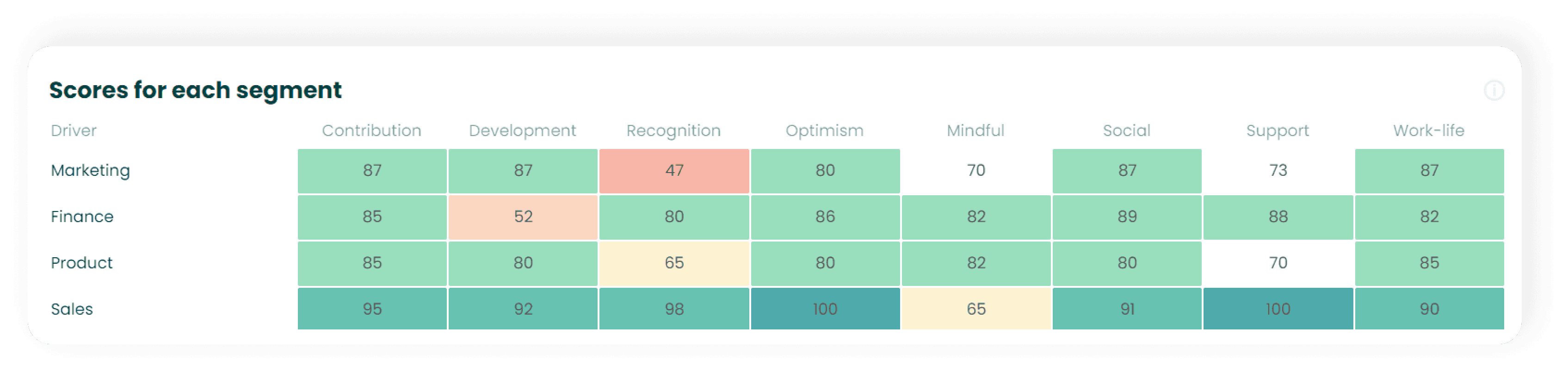
For example, we can again look at the marketing team and see that they have a Recognition score of 47, which is the lowest of all the drivers across the teams. Thus, it makes sense that this is currently one of the most important areas. Another interesting takeaway from the above illustration is the case of the product team. They score lowest on recognition why one would think this should be the driver to work with. However, the driver Support, although not scoring as low as Recognition, must be more important to the team (recall the first illustration of this article) - why support is the driver to focus on improving first.
You might also find this interesting. 👀
Employee journey.
Understand the employee journey.
Learn to read and use the employee journey.
Track and understand the high-level metrics, well-being, stress and eNPS, for your employees' across your different seniority groups.
See exactly which drivers score high and low at the different stages of the employee journey.
Pay attention to the potential differences between different seniority groups. You might be great at onboarding new employees, but other groups may be overlooked and drag down one of the overall metrics.
How to read and interpret the journey graphs.
The three high-level metric graphs show the average score for each seniority group over the last three months.
For example, as can be seen from the illustration below, well-being seems to increase throughout the employee's journey at the organization, although the significant increase occurs after the 3-year mark. The reasons behind this vary from organization to organization and one should reflect upon which employees make up for the different group(s) when drawing conclusions.
Taking a look at the Stress journey it is worth noticing that new employees that have been with the company for 0-0,5, 0,5-1 and 1-2 years are experiencing significantly higher levels of stress. The reasons for this might relate to new tasks, processes, challenges, and a steep learning curve. The
Stress journey
below could indicate that once the experience and skills have been acquired stress levels start to dwindle.
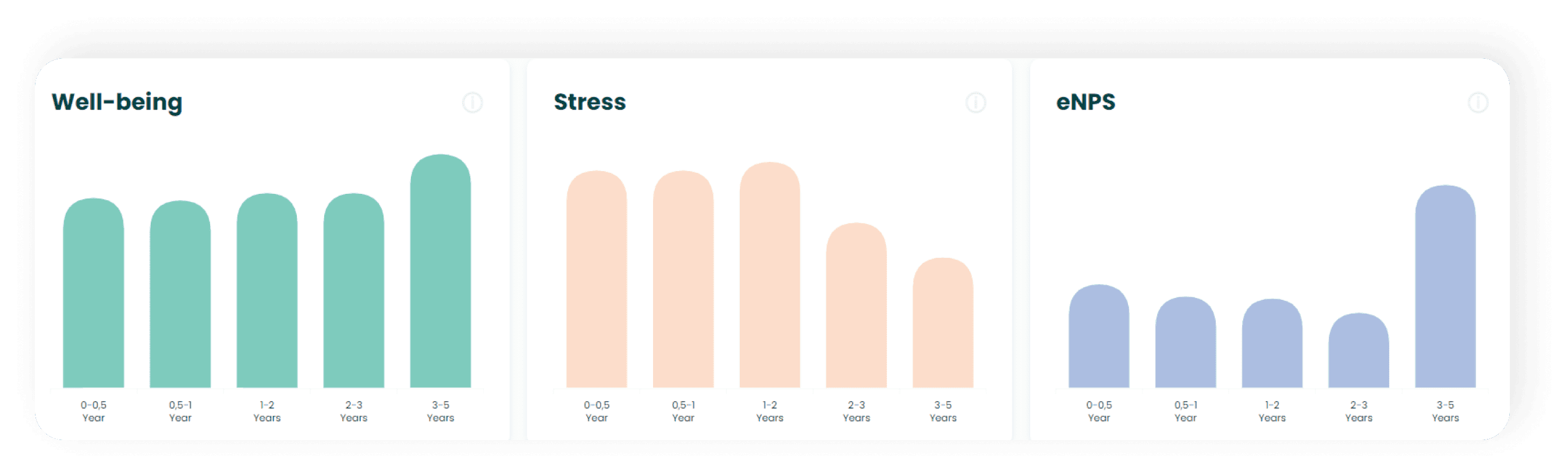
Lastly, the eNPS journey indicates that during the first months with the organization employees are somewhat likely to recommend the workplace, but the eNPS then slightly decreases in the following journey stages until they pass the 3-year mark.
Learn to read the driver scores and improve the employee journey.
The Driver score heatmap below shows the average score for the last three months, just like the charts above. The 8 drivers enable you to get an overview of how your employees score throughout the employee journey. This allows you to dig a bit deeper and understand which well-being drivers might be causing lower levels of well-being for some seniority segments. Let's jump right into a few examples of how to interpret and use these 8 drivers in the context of the employee journey. 🔎
For example, by looking at the driver contribution, we see that the new employees (0-0,5 years) have a score of 63, which indicates that the employees do not feel like they contribute significantly. This is a common challenge for new employees, however, we can also see that as the employee's tenure increases, so does the feeling of contribution with scores of 79 and 80 after 0,5-1 year and 1-2 years with the organization, respectively.
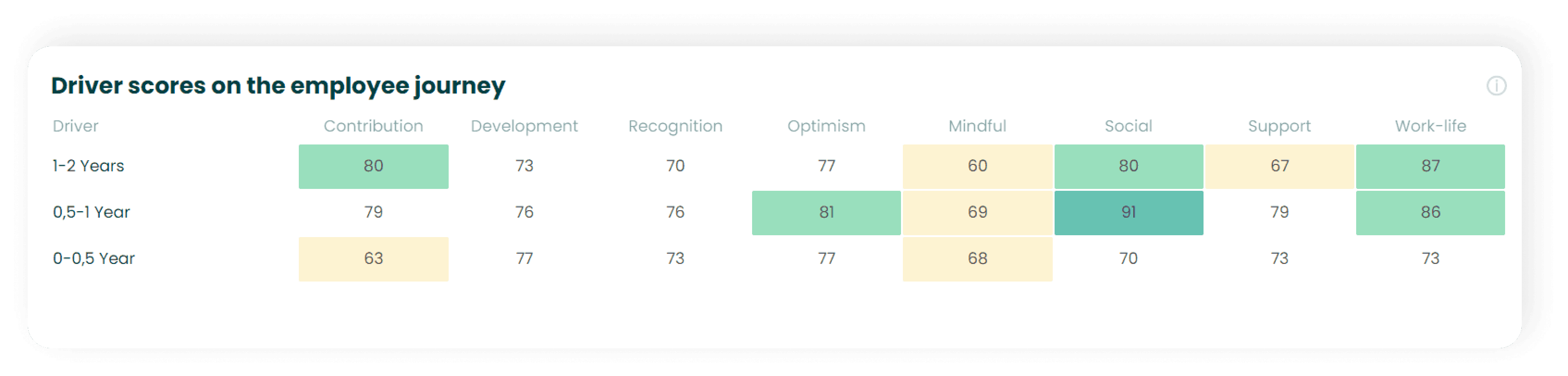
The driver Support provides another example of how to use the heatmap. Here it is interesting to see how employees who have been with the organization 1-2 years score lower on support. This could indicate that managers or supervisors overinvest in new employees and perhaps overlook the need for support for the more experienced employees. Hence, this serves as a reminder to keep focusing on getting the right support to employees also after their first year with the organization.
Here is a tip.💡 Before choosing what driver you would like to improve, remember to check the most important drivers under Analyze → Drivers. Click here to learn more about that.
You might also find this interesting. 👀
Tracking initiatives.
Learn how to use initiatives, add initiatives and track the effect of initiatives.
Learn about initiatives.
What are initiatives?
Explore how initiative helps you and get started improving employee satisfaction.
Use initiatives to get happier employees.
Ever wondered if your hard work with improving employee satisfaction is working? Now it's time to know for sure. Initiatives enable you to precisely track the effect of how different initiatives work. 😍
By marking the type of initiative, the date, and the expected impact you can easily see the effect and know if you're on the right track. Exciting right? 👏
Get started with initiatives right now.
How to use initiatives.
How to add initiatives.
This guide takes you through how you add an initiative step by step.
The 4 steps you need to complete.✔️
- What is the initiative? Describe and define the initiative.
- Why are you doing it? Choose the metrics you expect to impact.
- Who is this for? Choose one segment you want to target or a combination of more.
- When did/will it happen? Specify the duration of your initiative and how quickly you expect it to have an impact.
Then you're done. Your initiative is added and you can start tracking your initiatives.
1. What is the initiative?
Type: The first step in adding an initiative is to choose the type of initiative you would like to initiate. Here it is important to choose the type that fits your initiative the best. Let's say you've decided to split a team up into two more specialized teams, then you would choose "organizational design".
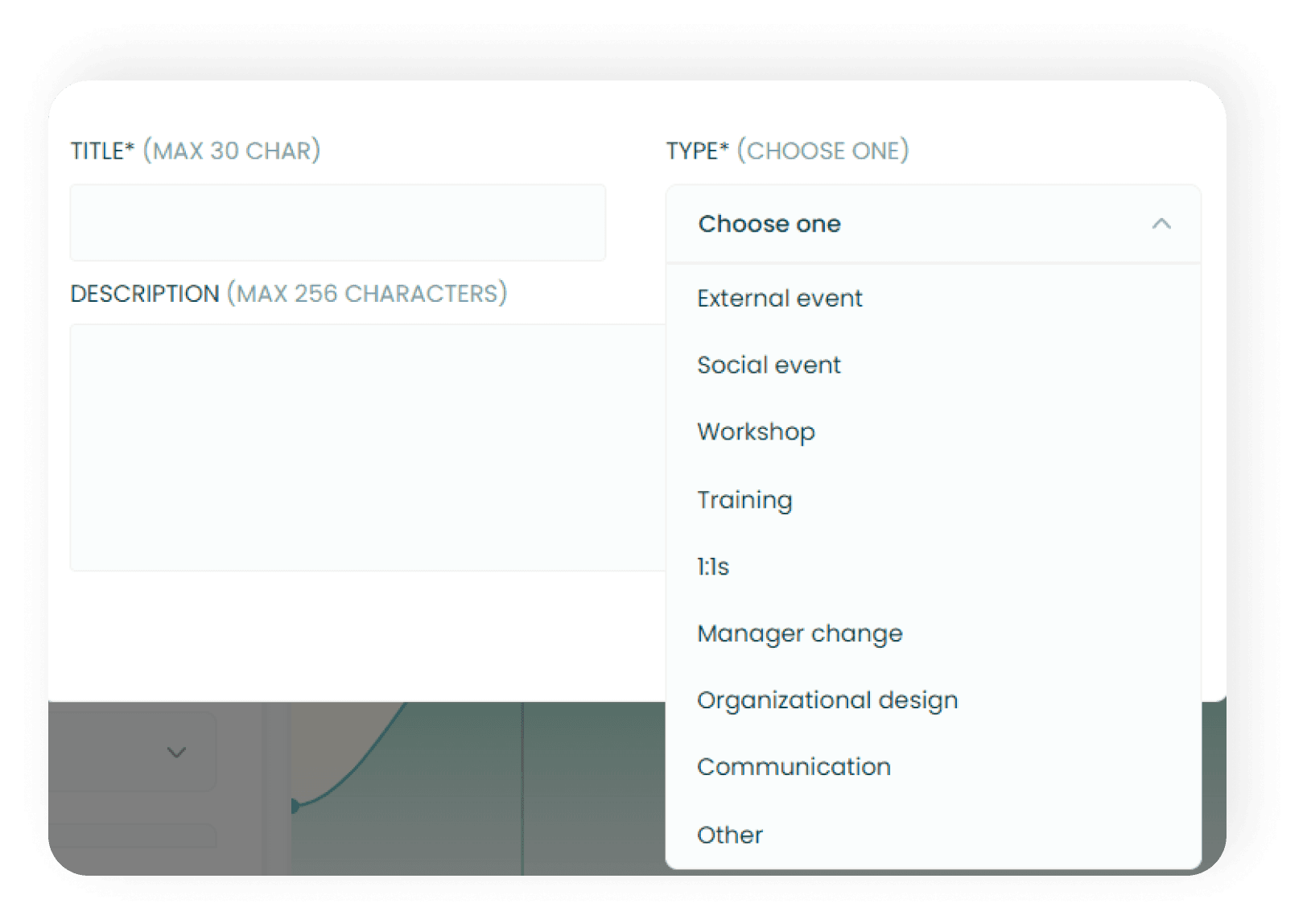
Title: Write a title that suits your initiative. That could for example be "separation of development team"
Description: Here you specify your initiative. Write a bit more about want you want to do, so you always can look back and remember what you did.
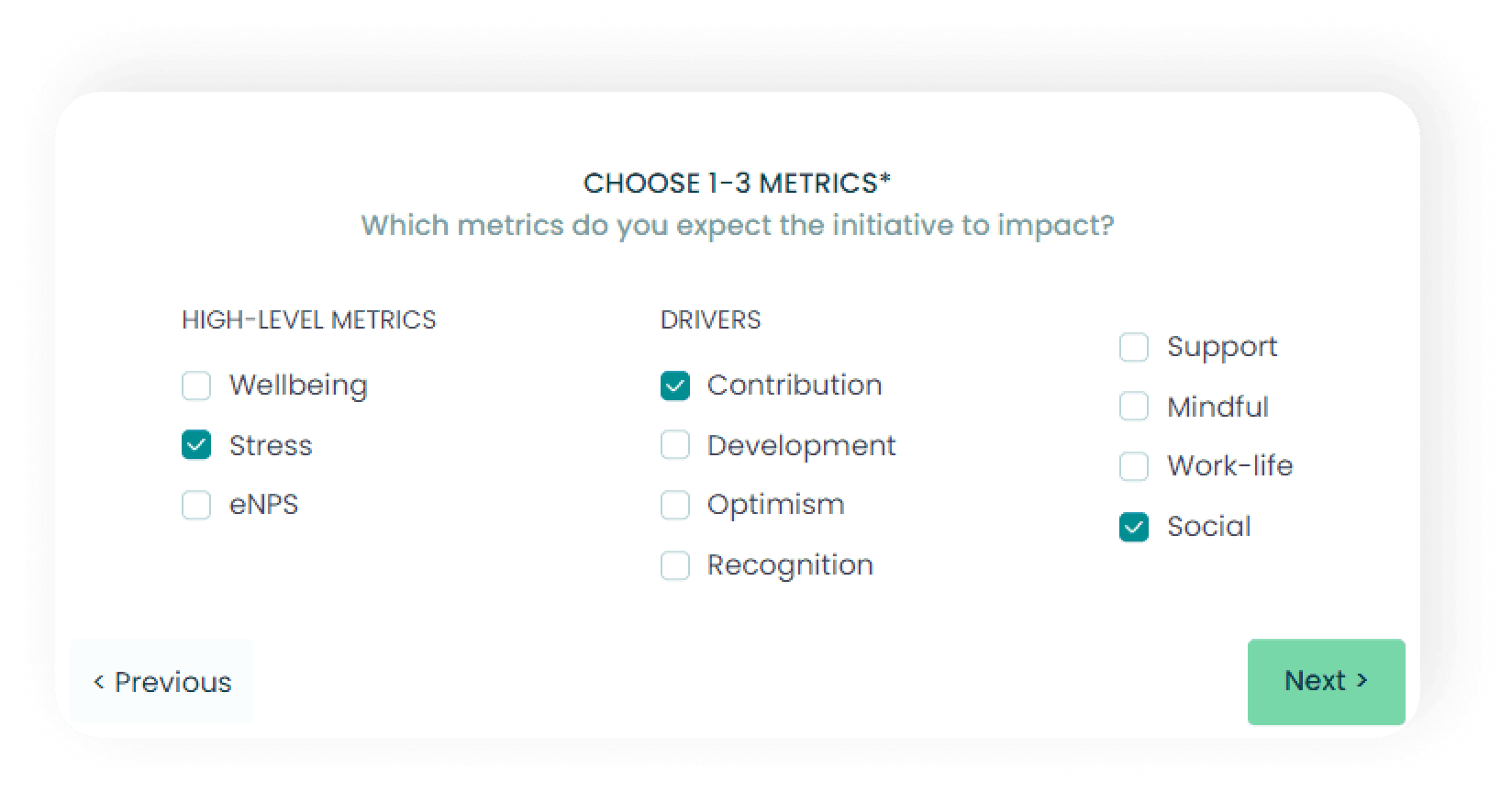
2. Choose the metrics you expect to impact.
You can choose up to three different metrics, it can either be the high-level metrics or you can go more specific and choose which drivers you expect the initiative to affect. This enables you to track the effect when the initiative is executed and allows us to give you even better suggestions of how to improve other metrics in the future.
You can click here to learn more about the high-level metrics or the drivers.
3. Choose one segment you want to target or a combination of more.
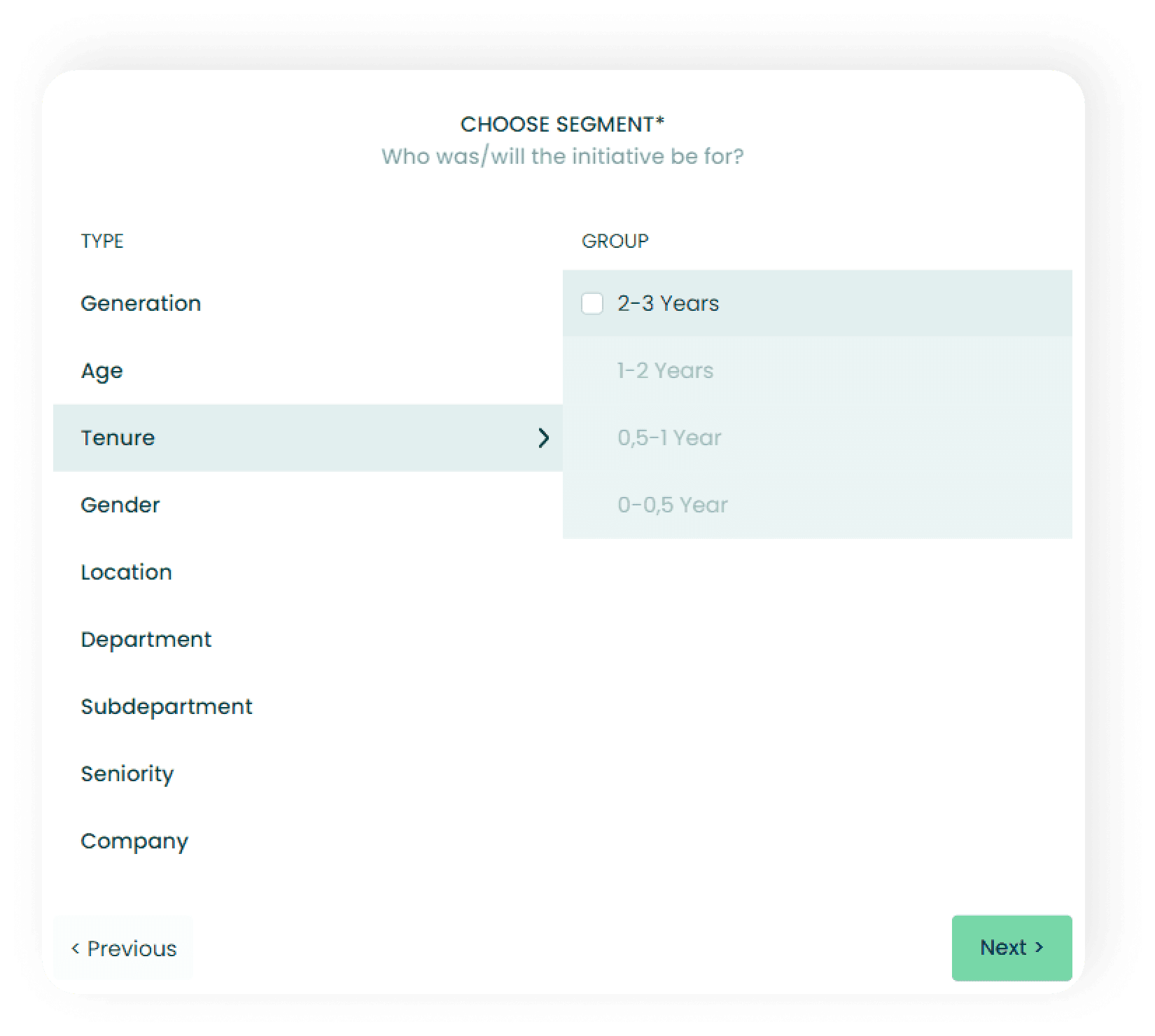
You can choose to track the initiative for the whole company or go more specific. For example, you track your initiative looking at a certain seniority or you can be even more specific and also combine it with department and age or any other segments you might want to sort after.
4. Specify the duration of your initiative and how quickly you expect it to have an impact.
By clicking the dropdown menu you can choose the expected time before your initiative has an impact.
Next, you have to choose when the initiative is accomplished, it can be just a single day or a period. When you have marked either one of the options you're ready to mark the day or the period in the calendar. Doing this enables you to track the effectiveness of your initiative from the exact date it was accomplished.
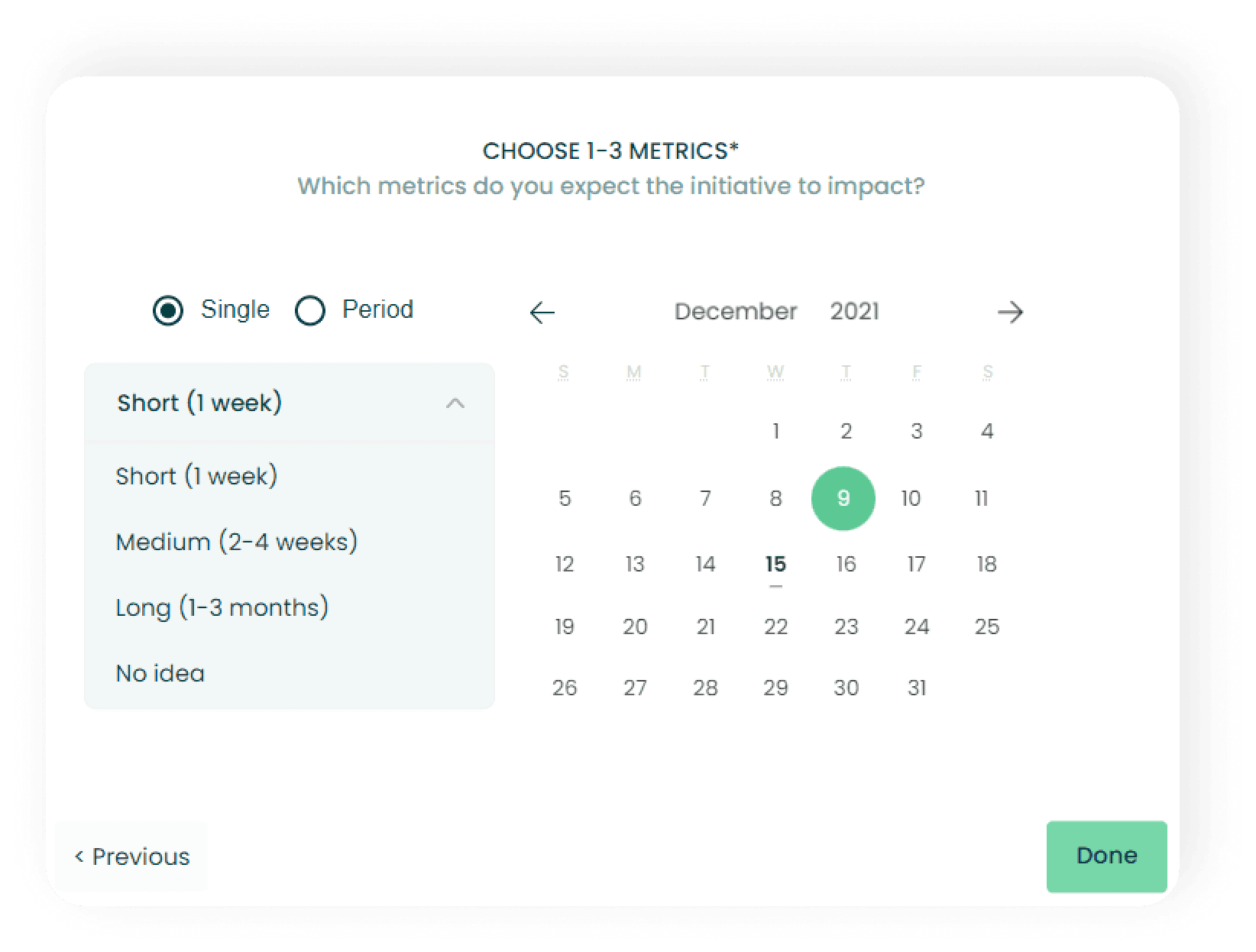
Start tracking your initiatives
After you have accomplished your initiative it's time to measure the effect of it on the next survey. Click here to learn much more about how to track the effectiveness and interpret the data. 📈
You might also find this interesting. 👀
How to evaluate data after an initiative.
Learn how to track the effectiveness of your initiatives
Here are the 4 steps you need to complete. ✔️
Choose the initiative in the left menu you want to track the effect of.
The black line on the graph is the date of the initiative, so look how it has developed since that date.
Choose different segments and metrics in the drop-down menus.
Now it's time to evaluate if your initiative worked as expected or if you might have to try something else. 🤔
1. What initiative do you want to track?
When you choose the initiative you like to track you will be able to see what matrics you expected the initiative to affect under measures. Under segments, you see the specific segment you wanted the initiative to affect. The date shows the date you accomplished the initiative and is represented with a black line on the graph.
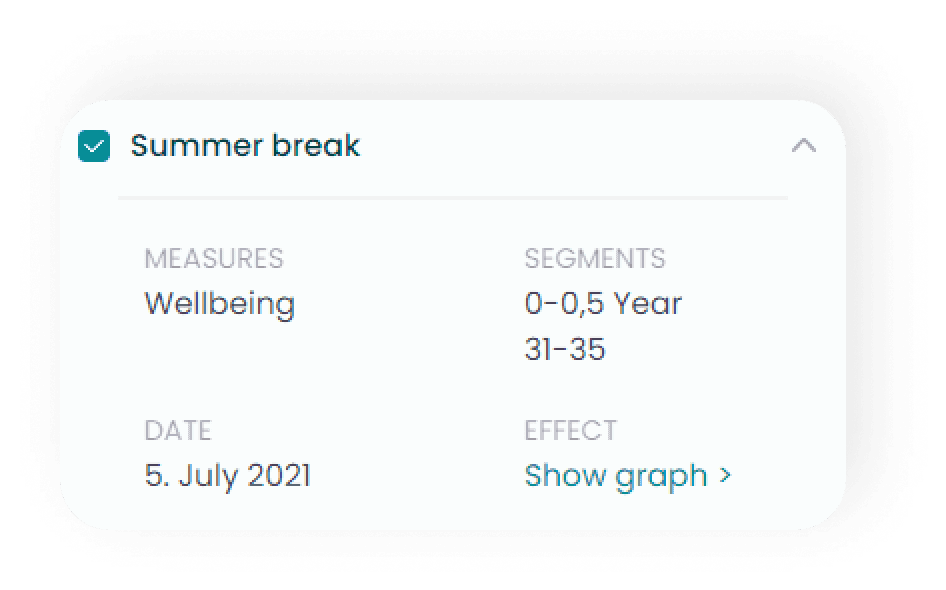
Here is a tip. 💡 To see the graph you can either click show graph or click the box left to the title of your initiative. 👀
2. Understand the graph.
Now that you have chosen the initiative you want to track, you will see three boxes.
Metrics show the metric or metrics you expected the initiative to affect. In the example below we are only measuring one metric which is well-being.
Segments show the specific segment you wanted the initiative to affect. In the example below we are looking at the segment "age" 31-35 years old.
Metrics over time is where you see the effect on the initiative. In the example below we are measuring the effect of the summer break. The date of the initiative is marked with the black line.
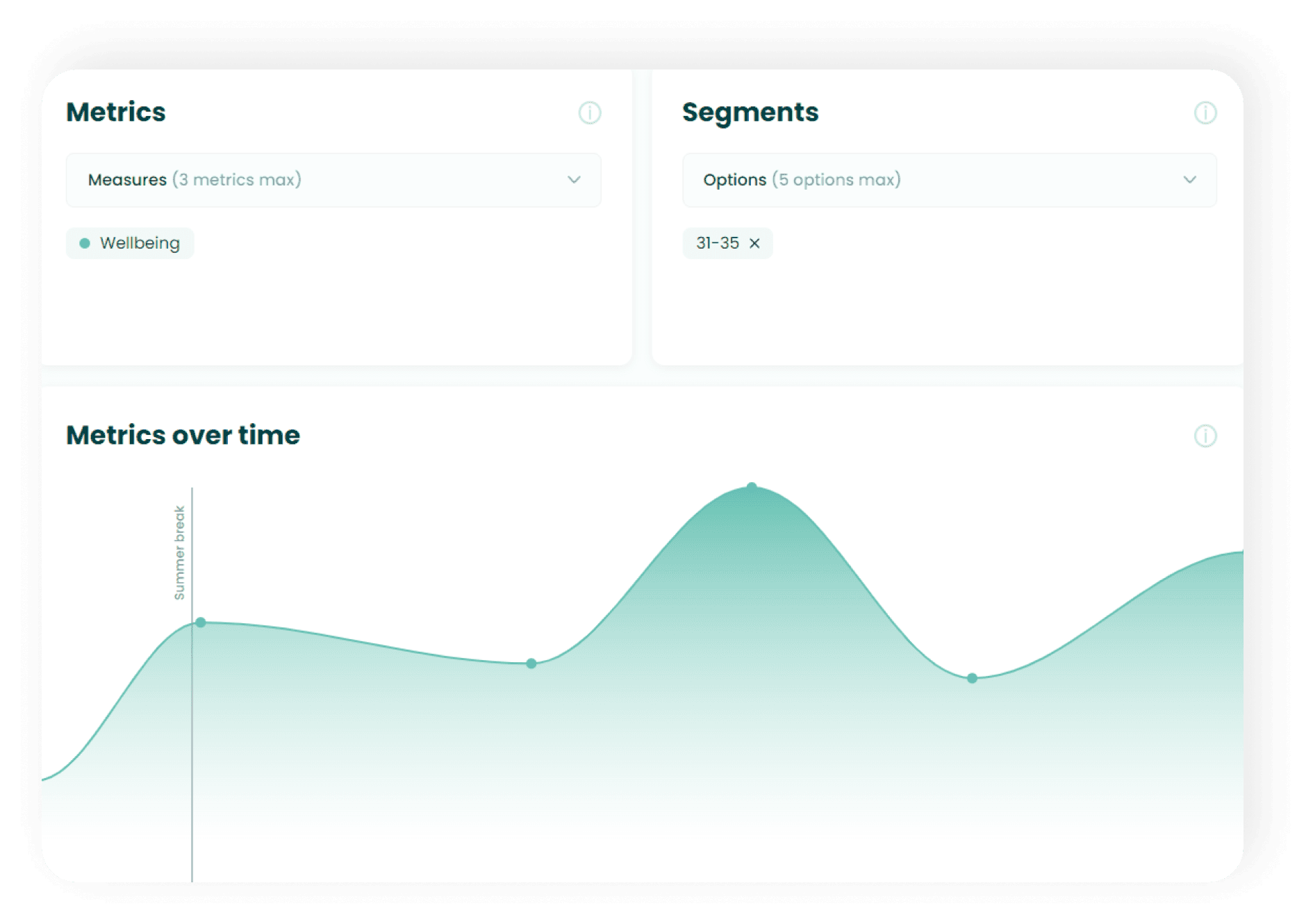
Here is a tip. 💡 Some initiatives may have a long-term effect. Therefore, remember that you might first see the effect after a couple of weeks or months. ⌛
3. Investigate if your initiative has affected other metrics or segments than expected.
Now that you have had a look at how your initiative affected the metrics and segments you expected, it's time to dive a bit deeper. 🔎
By clicking the dropdown menu under metrics you can choose up to three different metrics and track how they developed after your initiative.
Furthermore, you can also click the drop-down menu under segments and specify the segment by sorting it with up to five different segments.
For example, you might have noticed that the summer break increased your well-being, but you would like to know what impact it had on the work-life balance and the social driver. Also, you have been thinking that all the guys in the company seemed like they could really use a summer break. So, under metrics, you choose "Work-life" and "social" and under segments, you choose "male".
Looking at the graph, you're now able to see exactly how work-life and social have developed for the segment "male" since you initiated the initiative. 👍
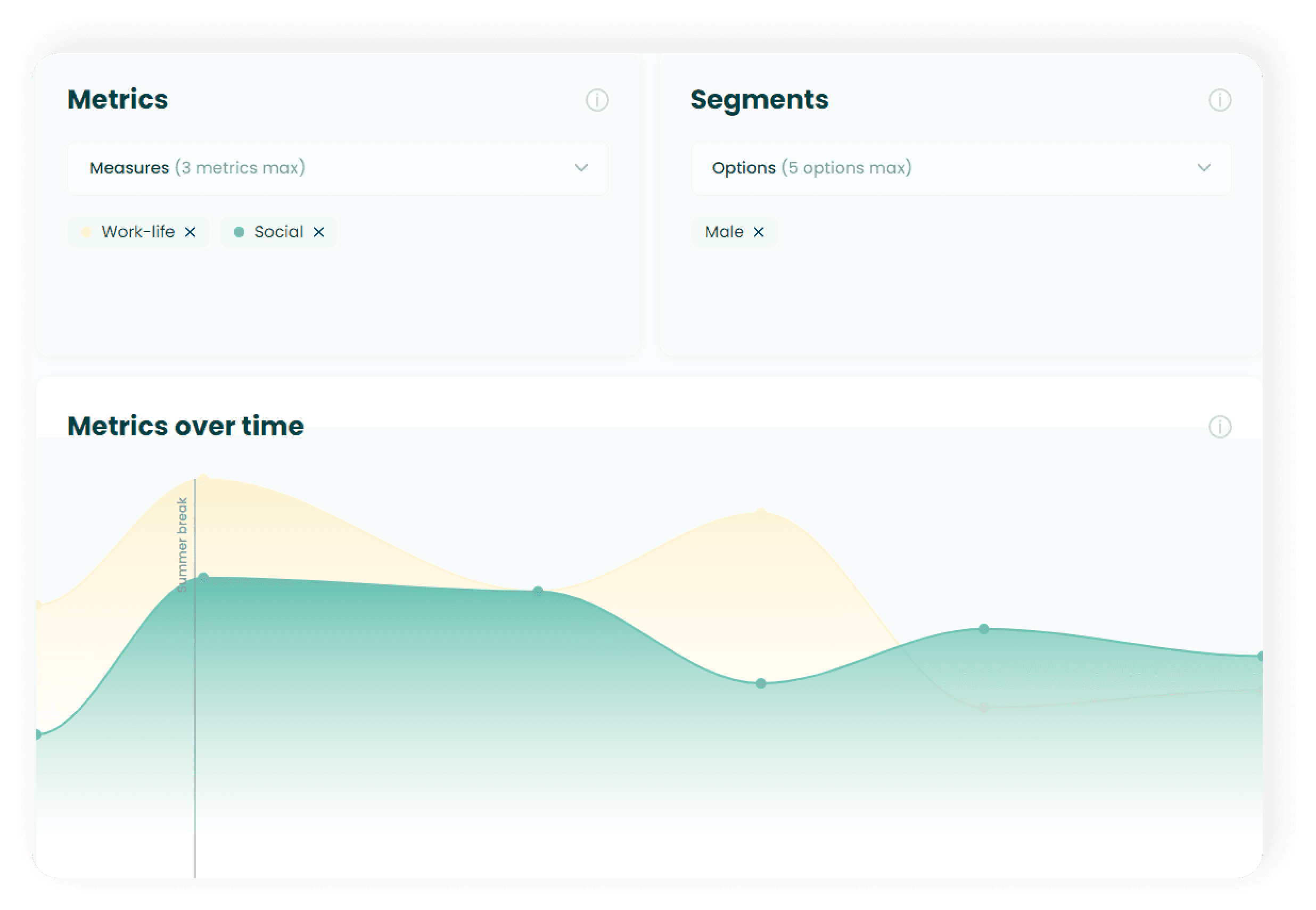
Here is a tip. 💡 You might be tempted to look at how the initiative affected the well-being or the stress score. But bear in mind that you can track the effect much more precisely by looking at how the drivers are affected, by also selecting them in the drop-down metrics menu. 😍
4. Evaluate the initiative.
After looking at the graph you hopefully found that your initiative has worked. If that's the case - great job! 👏 remember to take notes, so you know what worked.
Maybe you find that your initiative did not seem to work as you hoped. In that case, ensure that you measured on the right drivers and that you gave the initiative the right time work, normally it takes a couple of weeks or a few months.
If it still doesn't seem to work, don't lose hope. Remember to take notes, so you can remember why it didn't seem to work.
You might also find this interesting. 👀
My team.
Explore how to use Delegate for a quick overview of high-level metrics and which drivers are the most important.
<div style="position: relative; padding-bottom: calc(50.83333333333333% + 41px); height: 0;"><iframe src="https://demo.arcade.software/EuKdPG4n33qGSdzuqyAA?embed" frameborder="0" loading="lazy" webkitallowfullscreen mozallowfullscreen allowfullscreen style="position: absolute; top: 0; left: 0; width: 100%; height: 100%;color-scheme: light;" title="Zoios for leaders."></iframe></div>
Most important drivers.
The most important drivers, Delegate.
Explore which drivers are the most important for your company on a team level and on an organizational level.
Learn to interpret "the most important drivers" and know which the best drivers are to improve.
Learn how to affect the most important drivers.
Here are the 3 steps you need to know to use drivers. ✔️
Choose the group you want to know more about.
The higher the graph the more important the driver is for the segment.
Read about the drivers and learn how to improve them.
Know what matters to your employees, so you know where to take action.
Understanding what is important for your employees is not easy. So, we made it easy. By looking at the connection between the drivers and the overall well-being score we can tell what is the most important for your employees.
You can choose to see the most important drivers for the whole company, but often you're better off by looking at the team level.
1. What group do you want to know the most important drivers for?
Let's say we want to investigate how we can improve the well-being of our sub-departments.
First, click the dropdown menu at the top of the screen and choose the group of employees you want to know the most important drivers for. In this case, we have chosen the subdepartment "Product".
We now see five different graphs each representing how big of an impact the specific driver has on the overall well-being of the subdepartment "Product."
2. Understand how to read the graphs.
Hovering your mouse over the five different graphs you will see four measurements. these will help us to identify how important the driver is for the category in the dimension.
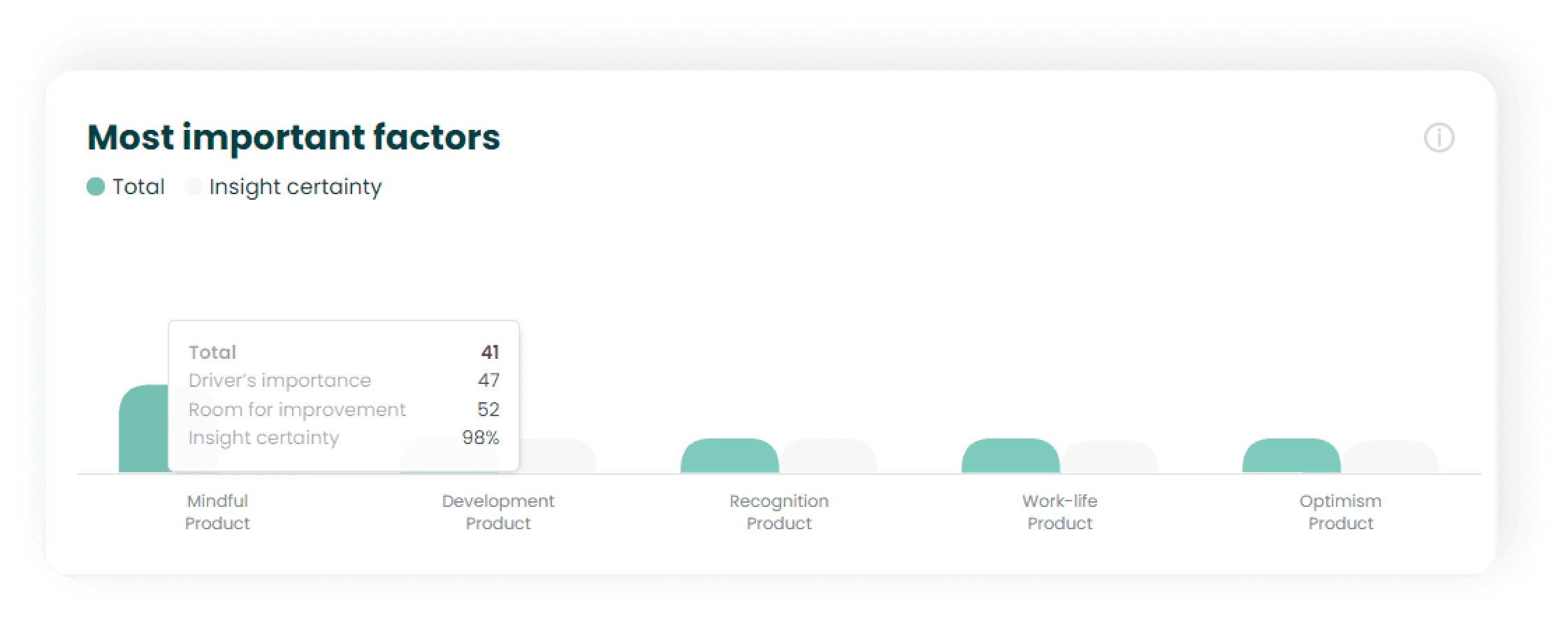
Driver's importance tells how big an impact this driver has on the overall well-being of the team. Looking at our example it means that it has a score of 68. A score of 68 will then mean that increasing this driver with ten will very likely increase the overall well-being score by no less than 6,8. Let's take another example, having a driver's importance score of 50 will very likely increase the overall well-being score by 5.
Room for improvement is a measure of how hard or how easy it is to improve the score. The higher the score the easier you can improve the score. When a driver hits a score of 90, it is so great that you can't expect to improve it more. So bear this in mind when deciding which driver you want to work with.
The total score is a weighted average of the two scores mentioned above. Use this score as your main indicator to know what driver makes the most sense to work with. The higher the number, the better it would be to choose that driver to try and improve.
Insight certainty is how likely the connection between the driver and the effect on the overall well-being is. In this case, it's 98% which simply means that the likelihood is 98%.
3. Well-being drivers.
The scores shown in the well-being drivers are ranking from 1-100 where 100 is the best. The well-being drivers add equally to the overall well-being score which is the average of all the well-being drivers.
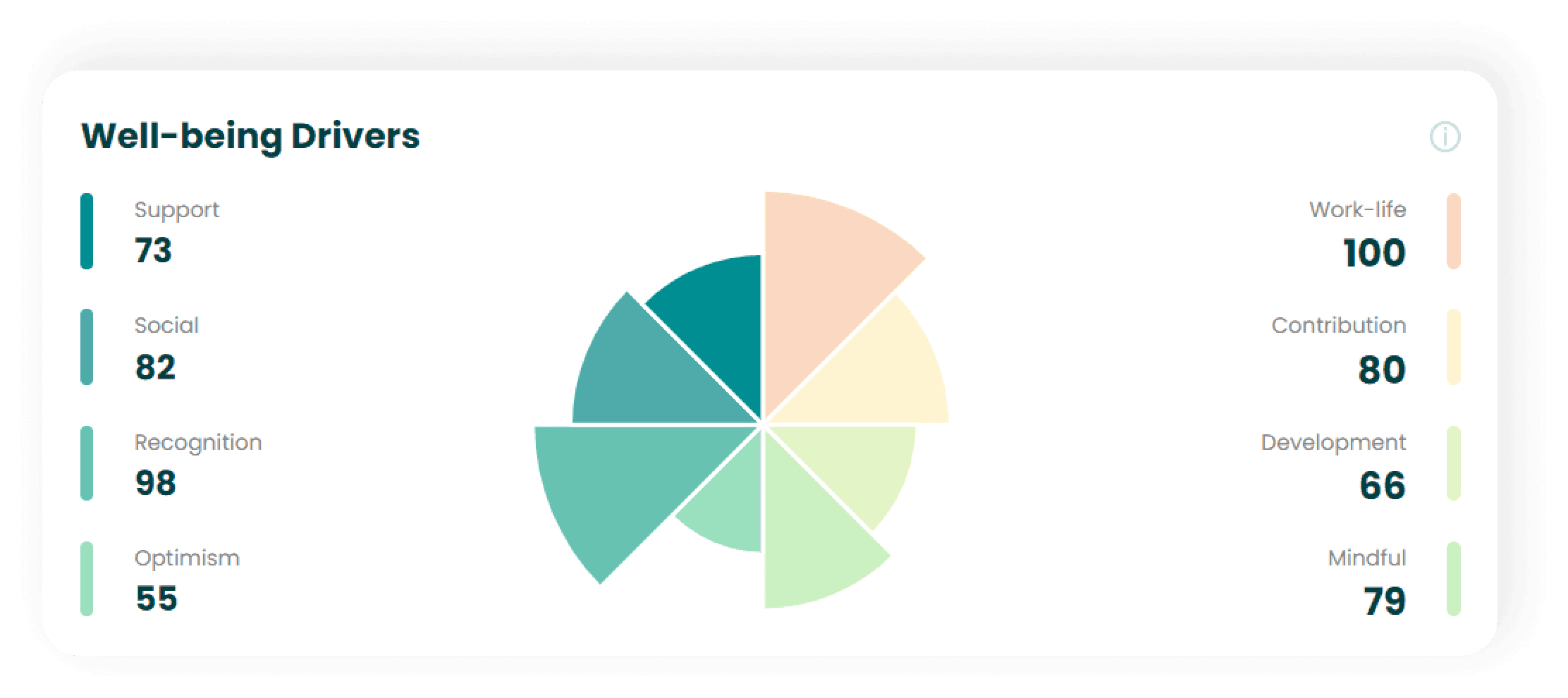
The well-being driver chart.
The polar chart shown in the middle is a visual representation of the drivers. It gives you a quick overview by showing the actual scores of the drivers represented as the areas of the triangles. The bigger the area the higher the score.
Understand how to improve the drivers.
On the left side of the screen, you will see an info box, this will help you to know how to interpret the drivers and how you can improve the score of the driver.
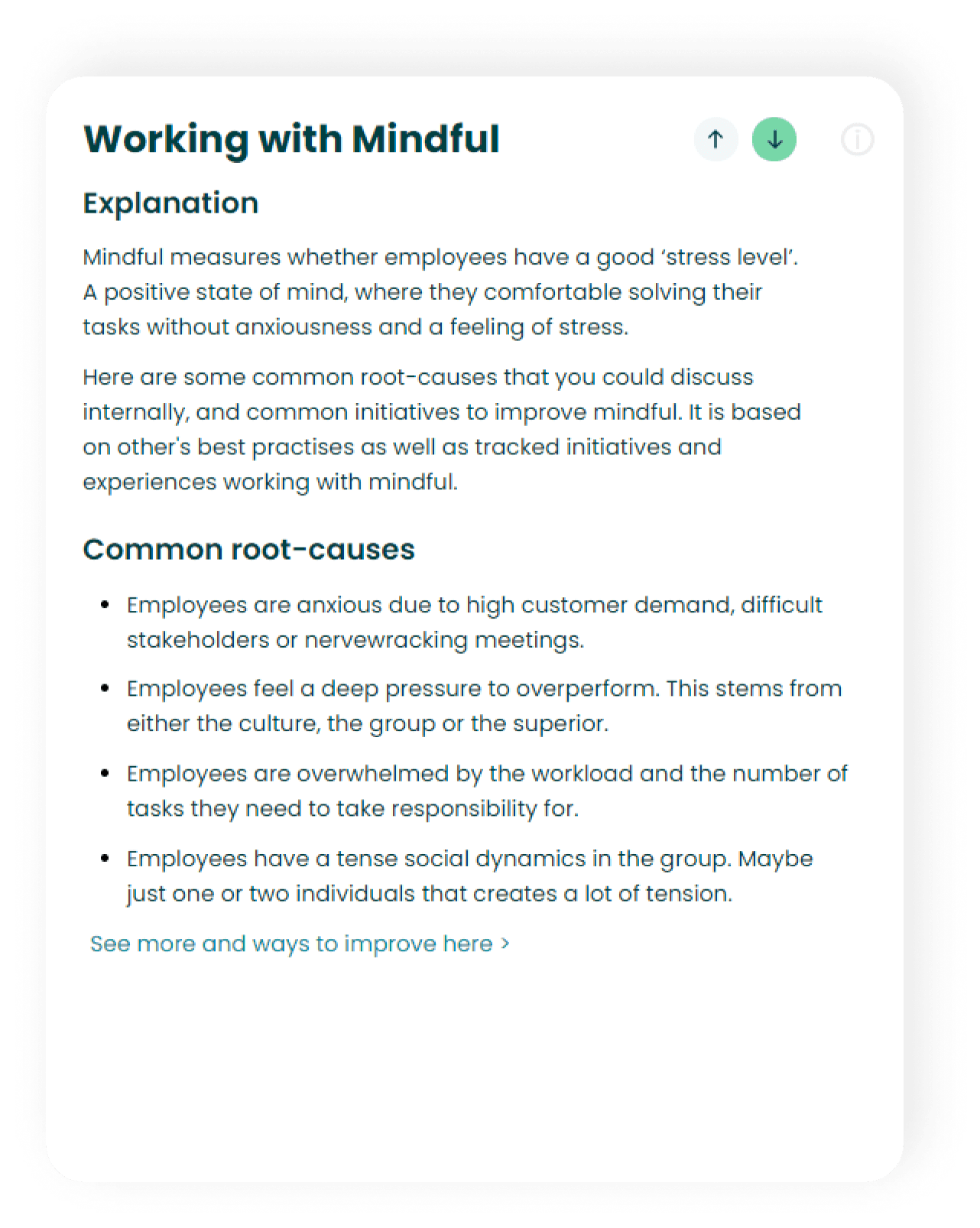
Here is a tip. 💡 Click the arrows in the box to go to the next driver explanation.
You might also find this interesting. 👀
Stress and Well-being overview.
Team report.
Learn about the well-being and stress score and how to read the graphs.
Quick overview of the well-being score and the stress score.
Track the development in actual numbers.
How to interpret the well-being score.
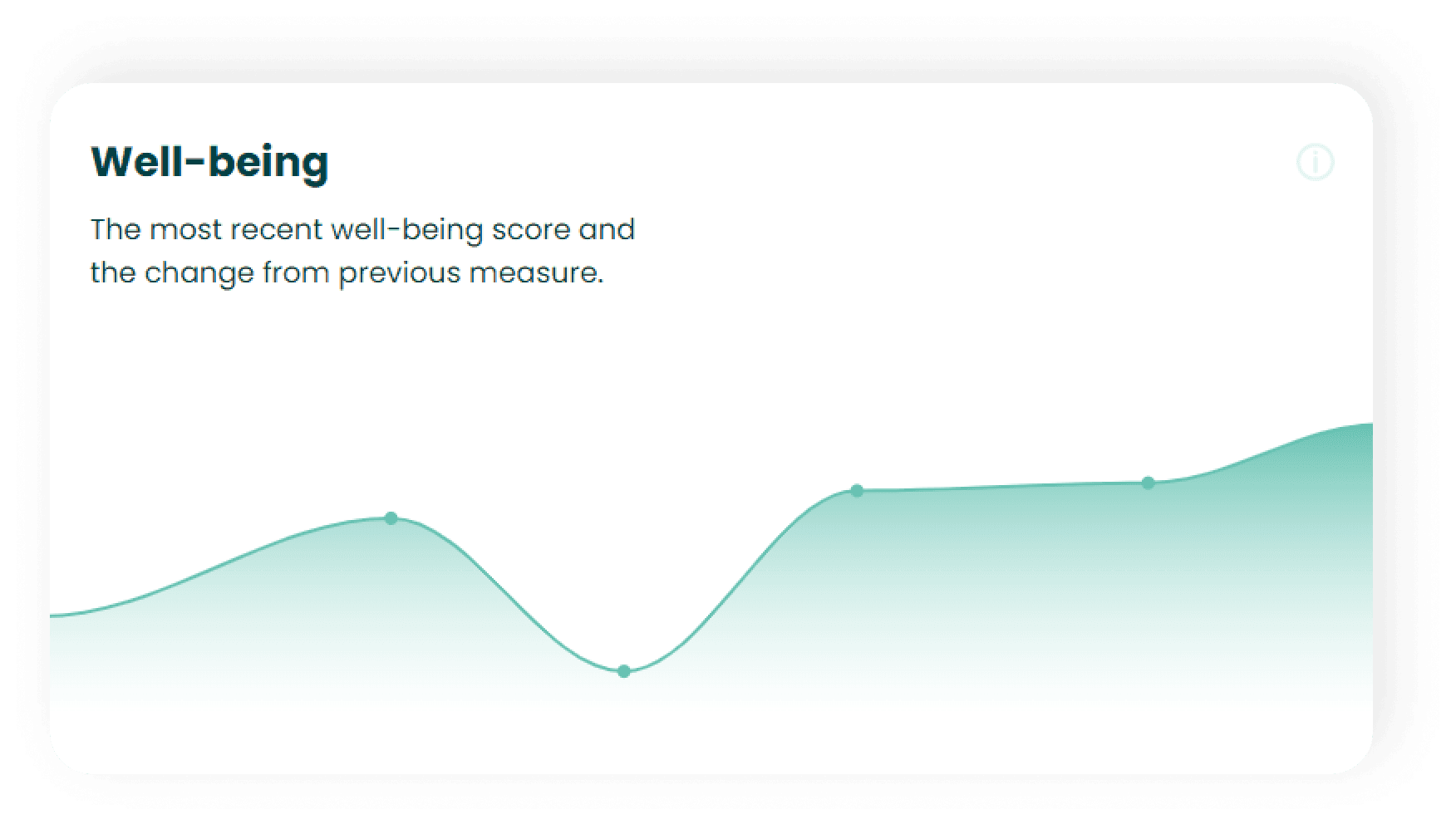
The Well-being score is a high-level metric. In short terms, it tells you how well your employees thrive. The score ranks from 1-100, where 100 is the best.
The Well-Being score is made up of an average score of the 8 Well-being drivers that we measure in the survey. Note that the 8 drivers also rank from 1-100, you can read much more about the 8 Well-being drivers here.
How to interpret the stress score.
Like the Well-being score, the Stress score is also a high-level metric. It tells you (you guessed it) the perceived stress levels of your employees. It is based on several different calculations. The score ranks from 1-100 but when looking at the stress score, it is important to note that the lower the score the better it is.
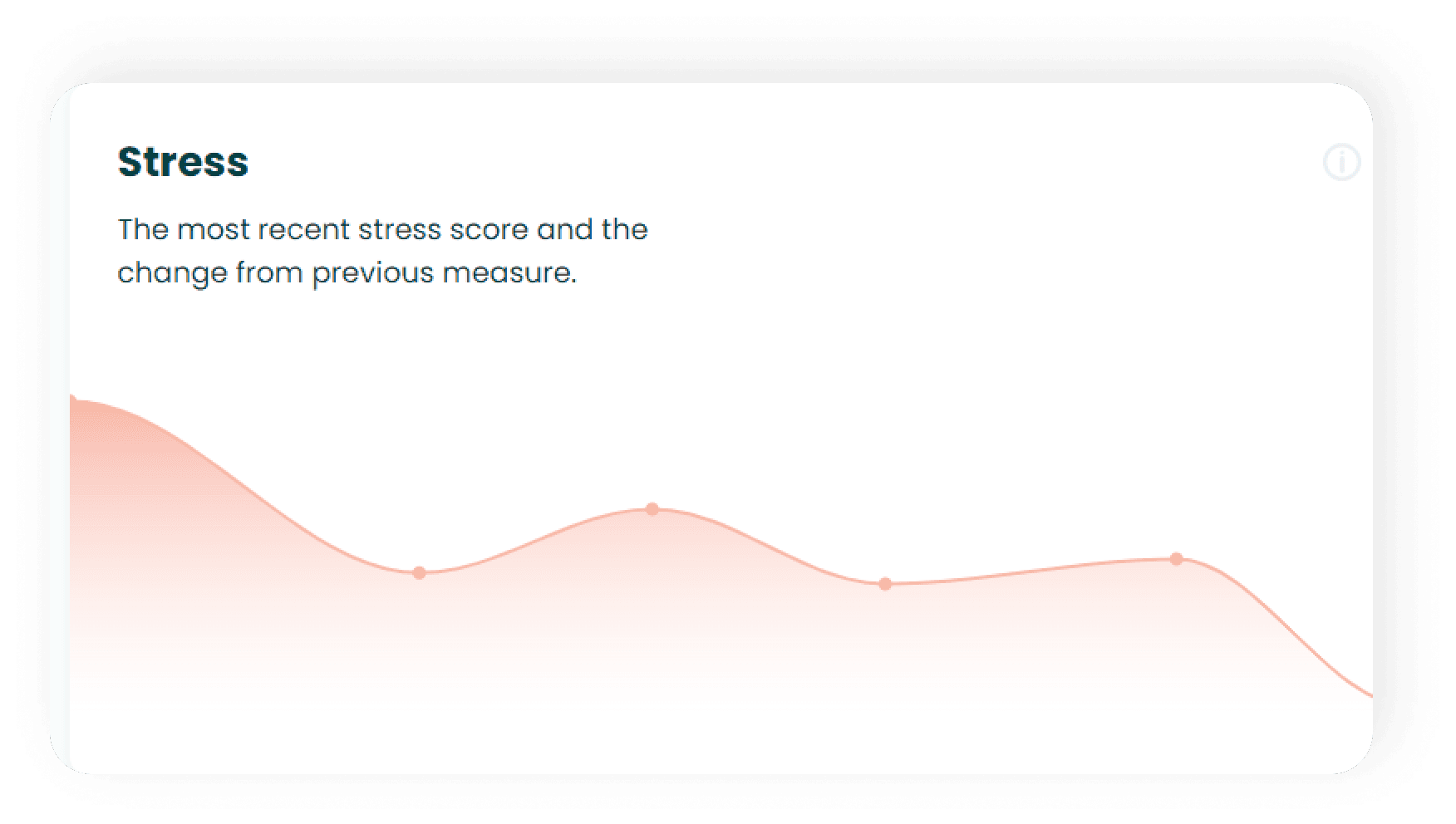
What are the dots on the graphs?
The dots on the graphs each represent a measure and enable you to track the development in the stress score from month to month. 📈
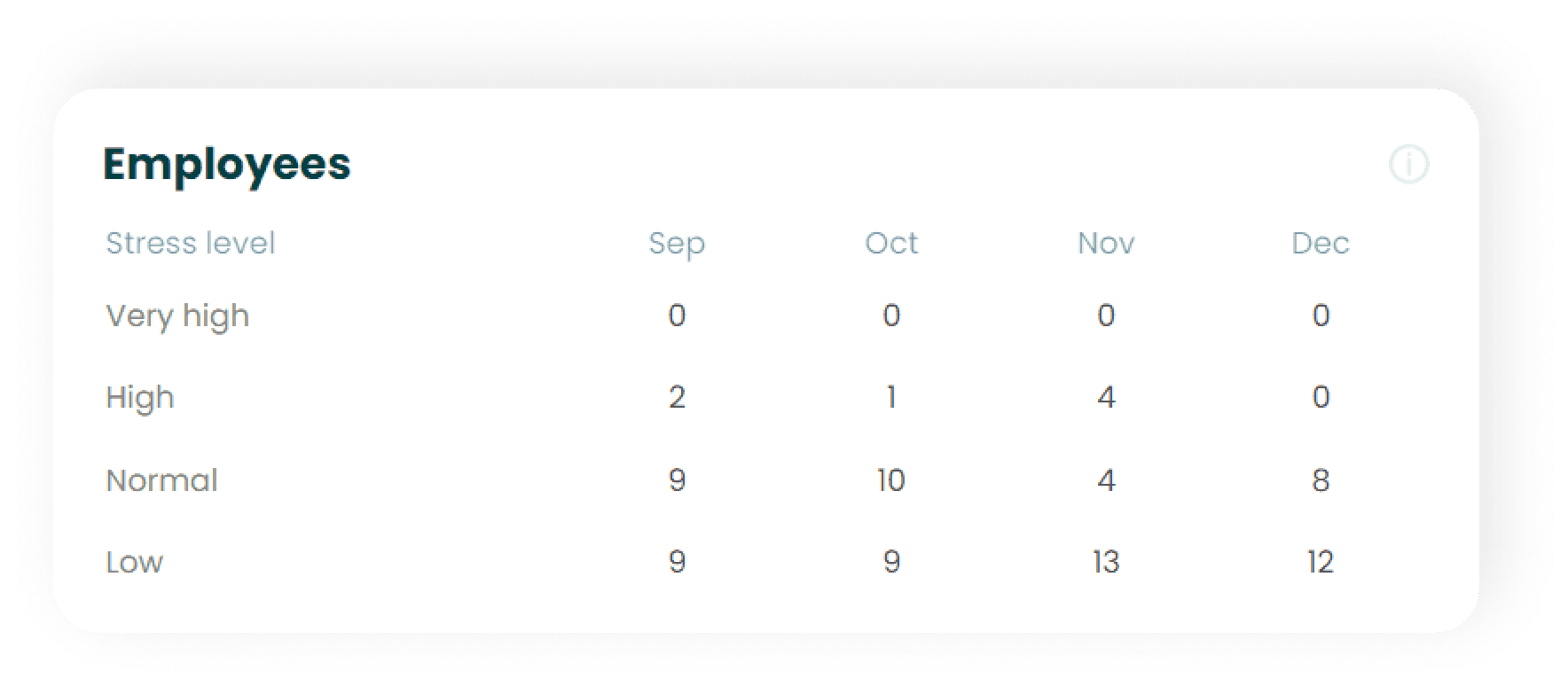
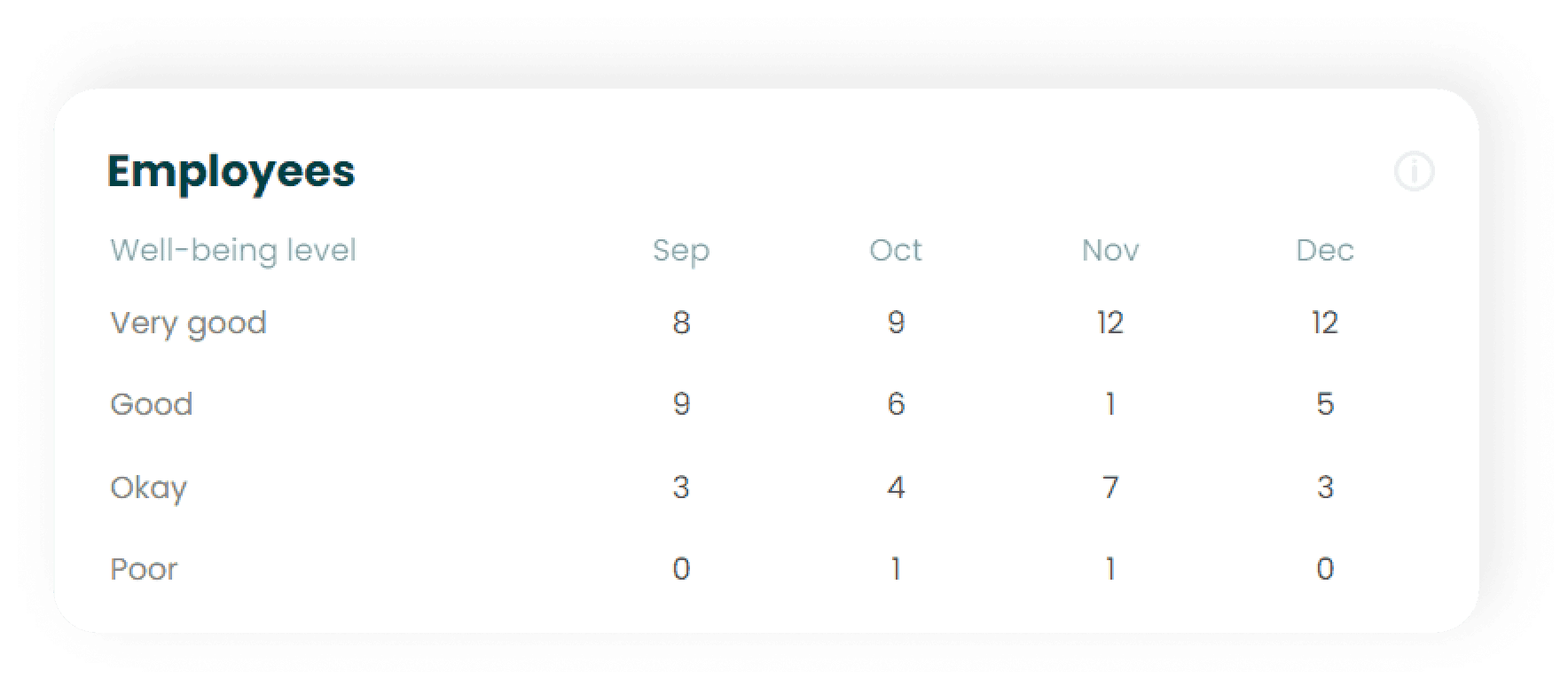
What do the stress and well-being levels mean?
Levels make you able to understand how many of your employees are ranking respectively, great, good, okay, or poor in the stress score.
The matrix shows the actual numbers of employees in the different levels for the lastest four months.
What scores do the different stress levels represent?
- Very high = Higher than 70
- High = 50-70
- Medium = 30-50
- Low = Lower than 30
What scores do the different well-being levels represent?
- Great = more than 80
- Good = 70-80
- Okay = 50-70
- Poor = Less than 50
Using your Admin panel.
A guide on how to add or remove employees and dimensions and give access to other employees using the Admin panel.
Employees.
Adding employees and editing employee information.
Learn how to add employees, edit employee information and edit multiple employees' information at the same time.
Quick introduction to the features of the admin panel.
Adding new employees.
The Employees section of the admin panel gives you access to all the employees in your organization included in the overview. To add a new employee, you press the green button “Add new employee”. Here you can fill out the employee details which are divided into Employee information and Employee segments. This is also the place where you mark an employee as Paused or Stopped.
Editing employee information.
If you want to edit the information of an employee, you can easily change this at a later point by navigating to the Employees section. You click on the specific employee you want to edit, and you are presented with the same pop-up screen as if you are adding a new employee.
Editing multiple employees.
If you would like to edit multiple employees at the same time, you can use the “Bulk edit” button. This button will be displayed as grey until you tick a box next to an employee. When you tick a box, you can click the “Bulk edit” button and begin editing. Then, a pop-up window will appear where you can choose from a drop-down menu based on the pre-determined dimensions and segmentations. In the top right corner, you can see how many active employees are selected out of the total active employees.
You might also find this interesting. 👀
Sorting and searching for employees.
Learn how to sort and search for specific employees.
Quick introduction to the features of the admin panel.
Sorting employees.
You can sort the list of employees by clicking on the headers. Name and Email can be sorted in alphabetical order and reverse alphabetical order while Status and Start date are sorted as ascending and descending. All other headers are sorted through drop-down options and can be combined to fit a specific sorting requirement. For example, you can sort all employees who have a Seniority of 2-3 years who is also in the age group 31-35 working in the Technology department.
Searching for a specific employee.
If you would like to search for a specific employee, you can use the search bar. Here you can search for the employee of choice by typing in their name. This doesn’t have to be an exact match of their name as a search for “jens” will both show “Jens” (First name) and “Jensen” (Last name) for any employee that meets this search requirement. You can also combine the search option with the sorting feature.
Reset filters.
A “Reset filters” text will appear next to the “Bulk edit” button when you are using sorting or search. Pressing this will reset the filters you have applied and display the complete list of employees again as it was before you applied filters.
You might also find this interesting. 👀
Pausing and stopping an employee.
Learn how to pause and stop an employee.
Quick introduction to the features of the admin panel.
Pausing an employee.
You can pause an employee by ticking the box “Pause employee” in the “Edit employee” pop-up display under “Paused”.
This feature is used when i.e., an employee is on sick leave, maternity leave, etc., and automatically excludes the employee from receiving the monthly surveys.
Stopping an employee.
Sometimes employees leave the organization for one reason or the other.
When an employee needs to leave the organization, you need to fill out
- Stopped date, which is the day they resigned or was laid off.
- Last day at work, which is the person's last day with the company.
- Job stopped reason, which is the reason they are stopping.
This will automatically change the employee's status to Inactive and the employee will now be displayed at the bottom of the list with a grey shade.
You can still edit the information of the former employee after you have filled out the abovementioned information.
You might also find this interesting. 👀
Dimensions.
Adding new dimensions and status of dimensions.
Adding new dimensions and status of dimensions.
Learn how to add new dimensions and navigate the status of the dimensions you want to include in the overview.
Quick introduction to the features of the admin panel.
Adding new dimensions.
To begin adding new dimensions, you click on the green “Add new dimension” button. A pop-up window will appear with premade dimensions which you can choose from. Here, you can click on the dimension of your choice and read more about the use of each specific dimension.
To activate a dimension, you click on the green “Activate dimension” button. When you have activated the dimension, the segments will appear empty. To add segments to the new dimension, you click on the dimension name. Now, a pop-up window will appear where you can add segments of your choice.
Remember to save your changes by clicking on the green button “Save changes” to proceed. You must then navigate to the Employees tab at the top to begin assigning employees to the dimension and segments.
Status of dimensions.
You can see which dimensions are active or inactive in the left-most column with the header “Status”. To make a dimension inactive, you can click on the green “Active” button. Then, it will appear as a grey “Inactive” button and be excluded from the overview. You will receive a short message stating that you have changed the status of the dimension to either active or inactive when clicking either of the two buttons. You can’t make a dimension that is mandatory inactive.
You might also find this interesting. 👀
Adding, editing, and removing segments for each dimension.
Adding, editing, and removing segments for each dimension.
Learn how to add, edit, and remove segments for each dimension.
Quick introduction to the features of the admin panel.
Adding, editing, and removing segments for each dimension.
To edit your dimensions, you click on the dimension name of the specific dimension you would like to edit. Then, a pop-up window will appear where you can edit the names of the segments. At the bottom of the list of dimensions, you can click the “+ Add another dimension” button to add new dimensions.
If no employees are assigned the segment, you can remove the segment. However, if one or more employees are assigned to the segment you can’t remove it until you have removed them from being assigned to the segment.
Locked and mandatory dimensions.
Some dimensions are mandatory (marked with a ‘*’) such as Department and Seniority which means that you can’t remove these from the overview. In the same way, some dimensions are locked (marked with a lock symbol) which means that the dimensions cannot be customized.
You might also find this interesting. 👀
Give access.
Admin, Full access, and Manager roles.
Learn how to navigate the three roles: Admin, Full access, and Manager.
Quick introduction to the features of the admin panel.
The three roles.
In the Give access overview, which you can navigate to by clicking the right-most tab at the top of the page, you can give employees in your organization access to selected features of the platform. An employee can be assigned the role of Admin, Full access, or Manager. These roles have different privileges explained in detail below.
Admin.
An employee assigned as Admin can navigate the admin panel and all of its features as well as the entire platform including Overview, Report, Analyze, and Execute. This means that the Admin can add, edit and remove employees, dimensions and segments, and the access for each employee in the organization.
Full access.
When an employee is assigned the role Full access, it means that the employee can access the entire platform just as the Admin can but without access to the Admin panel. If you have an external consultant or a director who must have access to the entire platform but not edit anything, you can assign that person the role Full access.
Manager.
Giving an employee the role of a Manager means that the employee can view the Initiatives and Delegate section in the Execute tab on the platform. You choose which parts of the organization the Manager has access to when they view the Execute section by navigating to the employee information. E.g., a manager from the Marketing & PR” team in the Denmark office is assigned access to the department (Dimension) “Marketing & PR” (Segment) and location (Dimension) “Denmark” (Segment).
You might also find this interesting. 👀
Adding, editing, and removing access privileges.
Learn how to add, edit, and remove access privileges for employees.
Quick introduction to the features of the admin panel.
Adding an employee.
To give an employee access, you click on the green “Add new employee” button. Here, a pop-up window will appear where you fill out the name or email address of the employee. From here, you click on the employee that you want to give access. A pop-up window will appear where you can assign the employee a role.
If you find that you want to choose another employee, you can navigate back to the search feature by clicking on the “Choose other user” text in the upper right corner of the pop-up window. Remember to click on the green “Save new employee” button to add the employee to the list of persons with access privileges.
Editing access role.
If you want to change the access role for an employee, you can click on the name of the employee and choose one of the three options in the drop-down menu shown in the pop-up window. Here, you can also change the First name, Last name and Email address. Remember to click on the green “Save changes” button to save the changes you have made.
Removing access privileges.
To remove one or more employees’ access, you tick the box next to name, and then click on the orange “Delete user access” button next to the green “Add new employee” button. If you are sure that you want to remove the access, you click on the green “Yes, save” button in the Attention pop-up window. Here, you will also be informed as to how many employees you are in the process of deleting access for.
You might also find this interesting. 👀
Sorting and searching for a specific employee.
Learn how to search and sort for a specific employee when giving access.
Quick introduction to the features of the admin panel.
Sorting employees.
You can sort the employees on the Give access list by Name, Email, and Role. These are sorted in alphabetical order or reverse alphabetical by clicking on the titles. The sorting settings are not saved when you navigate to the other tabs Employees and Dimensions.
Searching for a specific employee.
You can use the search bar next to the green “Add new employee” button to search for a specific employee by typing in the name of the employee.